

When it comes to LED projects, selecting the right components is crucial for achieving optimal performance and longevity. Two essential components for your LED setup are the LED driver and the microcontroller. In this blog post, we’ll discuss why the GS8208 LED driver and ESP32 microcontroller are ideal choices for your 12V LED project.

1. Choosing the Right Components: GS8208 12V LEDs and ESP32
When it comes to LED projects, selecting the right components is crucial for achieving optimal performance and longevity. Two essential components for your LED setup are the LED driver and the microcontroller. In this blog post, we’ll discuss why the GS8208 LED driver and ESP32 microcontroller are ideal choices for your 12V LED project.
Understanding the GS8208 LED Driver and Its Benefits
GS8208 is a popular constant current LED driver that supports up to 16 channels, making it an excellent choice for complex projects requiring intricate lighting patterns. This driver is compatible with various LED strips, including 12V models. Some of the key benefits of the GS8208 driver include:
- Reliable performance: The GS8208 driver provides consistent power to your LED strips, ensuring vibrant and uniform color output.
- Advanced protection features: This driver offers short-circuit, over-voltage, and over-temperature protection, safeguarding your LED setup from potential damage.
- Easy to use: The GS8208 driver is simple to install and can be easily controlled via DMX, Art-Net, or other protocols.
Selecting the Perfect LED Strip for Your Project
When choosing LED strips for your project, it’s essential to consider factors such as chip type, LED density, waterproofing, and flexibility. For this project, we recommend using 12V LED strips with high-quality chips, such as 5050 SMD or 3528 SMD, to achieve vibrant and consistent color output. A higher LED density (measured in LEDs per meter) will result in a brighter and more evenly lit display. Additionally, consider waterproofing and flexibility options based on your project’s requirements.
Why Choose ESP32 as Your Microcontroller?
The ESP32 is a powerful and versatile microcontroller that offers impressive performance and connectivity options for complex LED projects. This microcontroller boasts a dual-core processor, built-in Wi-Fi, and Bluetooth capabilities, making it an ideal choice for projects requiring remote control or integration with smart home systems. The ESP32 supports various programming languages, such as MicroPython and Arduino, making it accessible for both beginners and seasoned developers.
Comparing ESP32 to Alternative Microcontrollers
While other microcontrollers, such as the Arduino Mega or Raspberry Pi, are available, the ESP32 stands out due to its compact size, low power consumption, and built-in wireless capabilities. These features make it an ideal choice for projects requiring remote control or integration with smart home systems. Additionally, the ESP32’s competitive pricing makes it an attractive option for hobbyists and professionals alike.
Sourcing Your Components: Tips for Success
When sourcing your components, it’s essential to choose reputable suppliers to ensure you receive high-quality products. Look for vendors with positive customer reviews and a track record of providing reliable products. It’s also a good idea to purchase your LED strips, GS8208 driver, and ESP32 from the same supplier to ensure compatibility and minimize potential issues. Don’t forget to check for any available discounts or promotions, as well!
Bringing Your GS8208 12V LEDs to Life with ESP32 and WLED
Once you’ve sourced your components, it’s time to bring your LED project to life. The WLED firmware is an open-source solution that simplifies the process of controlling your LED strips via the ESP32. With WLED, you can easily create and customize lighting patterns, set timers, and even integrate your LED setup with popular smart home platforms like Amazon Alexa and Google Home.
Getting Started with WLED and ESP32
To get started with WLED and ESP32, follow these steps:
- Install the WLED firmware on your ESP32.
- Connect your ESP32 to your Wi-Fi network.
- Connect your LED strips to the GS8208 driver and the ESP32.
- Access the WLED web interface by entering the ESP32’s IP address into your web browser.
- Configure your settings and create custom lighting patterns.
With these simple steps, you’ll be able to create stunning lighting displays using your GS8208 12V LEDs and ESP32 powered by WLED. Happy tinkering!
Expanded Section: Understanding the GS8208 LED Driver and Its Benefits
The GS8208 LED driver is a popular choice for LED projects due to its reliable performance and advanced protection features. Here’s a closer look at its benefits:
Reliable Performance
The GS8208 driver provides consistent power to your LED strips, ensuring vibrant and uniform color output. This is because it uses a constant current design, which means that the current flowing through each LED is kept constant, regardless of any voltage fluctuations. This results in stable and consistent color output, even in large LED installations.
Advanced Protection Features
The GS8208 driver also offers advanced protection features that safeguard your LED setup from potential damage. Short-circuit protection prevents damage to the driver and LED strips in case of a short circuit, while over-voltage protection protects against voltage spikes that could harm the driver or LEDs. Additionally, over-temperature protection shuts down the driver if it gets too hot, preventing damage to the driver and LEDs.
Easy to Use
The GS8208 driver is simple to install and can be easily controlled via DMX, Art-Net, or other protocols. This makes it an ideal choice for complex projects requiring intricate lighting patterns. Additionally, the driver’s compact size makes it easy to integrate into your LED setup, even in tight spaces.
Expanded Section: Selecting the Perfect LED Strip for Your Project
Choosing the right LED strip for your project is crucial for achieving the desired color output and brightness. Here are some factors to consider when selecting LED strips:
Chip Type
LED strips come in various chip types, each with its unique characteristics. For example, 5050 SMD chips are popular for their high brightness and wide viewing angle, while 3528 SMD chips are known for their compact size and energy efficiency. When selecting LED strips, consider the chip type that best fits your project’s requirements.
LED Density
LED density refers to the number of LEDs per meter of the strip. A higher LED density results in a brighter and more evenly lit display. For example, a 60 LED/m strip will be brighter than a 30 LED/m strip. When selecting LED strips, choose a density that provides the desired level of brightness for your project.
Waterproofing
If your LED project will be exposed to moisture or water, consider using waterproof LED strips. These strips are encased in a waterproof silicone material that protects the LEDs and circuitry from water damage. When selecting waterproof LED strips, look for a high ingress protection (IP) rating, which indicates the level of water and dust protection provided.
Flexibility
LED strips come in various levels of flexibility, from rigid strips to flexible strips that can be bent and shaped. When selecting LED strips, consider the level of flexibility required for your project. For example, if you need to install LEDs around corners or curves, choose a flexible LED strip that can be easily bent and shaped.
Expanded Section: Why Choose ESP32 as Your Microcontroller?
The ESP32 microcontroller is a popular choice for LED projects due to its impressive performance and connectivity options. Here are some reasons why:
Dual-Core Processor
The ESP32 features a dual-core processor, which means that it can handle multiple tasks simultaneously without slowing down. This is ideal for complex LED projects that require real-time control and processing.
Built-In Wi-Fi and Bluetooth Capabilities
The ESP32 features built-in Wi-Fi and Bluetooth capabilities, making it an ideal choice for projects requiring remote control or integration with smart home systems. This allows you to control your LED setup using your smartphone or voice commands, and even integrate it with other smart home devices.
Supports Various Programming Languages
The ESP32 supports various programming languages, such as MicroPython and Arduino, making it accessible for both beginners and seasoned developers. This allows you to use the programming language that best fits your project’s requirements and your level of expertise.
Compact Size and Low Power Consumption
The ESP32 is compact in size and has low power consumption, making it an ideal choice for projects that require a small form factor or need to run on battery power. This makes it an attractive option for portable LED projects or installations where power sources are limited.
Competitive Pricing
The ESP32 is competitively priced, making it an attractive option for hobbyists and professionals alike. This allows you to build complex LED projects without breaking the bank.
Expanded Section: Comparing ESP32 to Alternative Microcontrollers
While other microcontrollers, such as the Arduino Mega or Raspberry Pi, are available, the ESP32 stands out due to its compact size, low power consumption, and built-in wireless capabilities. Here’s a comparison of the ESP32 to alternative microcontrollers:
ESP32 vs. Arduino Mega
The Arduino Mega is a popular microcontroller for LED projects due to its large number of input/output pins and compatibility with various shields and modules. However, the ESP32 offers several advantages over the Arduino Mega, including built-in Wi-Fi and Bluetooth capabilities, a smaller form factor, and lower power consumption. Additionally, the ESP32 is more cost-effective than the Arduino Mega, making it an attractive option for budget-conscious projects.
ESP32 vs. Raspberry Pi
The Raspberry Pi is a popular single-board computer that can be used for various applications, including LED projects. However, the ESP32 offers several advantages over the Raspberry Pi for LED projects, including a smaller form factor, lower power consumption, and built-in wireless capabilities. Additionally, the ESP32 is more cost-effective than the Raspberry Pi, making it an attractive option for hobbyists and professionals alike.
Expanded Section: Sourcing Your Components: Tips for Success
When sourcing your components for your LED project, it’s essential to choose reputable suppliers to ensure you receive high-quality products. Here are some tips for success:
Look for Positive Customer Reviews
Before purchasing components from a supplier, look for positive customer reviews and ratings. This can help you gauge the supplier’s reliability and the quality of their products.
Check for Compatibility
Ensure that the components you select are compatible with each other. For example, check that the LED strip voltage matches the GS8208 driver voltage and that the ESP32 has enough input/output pins to control the number of LED channels required.
Choose a Reputable Supplier
Choose a supplier with a track record of providing reliable products and excellent customer service. Look for suppliers that offer warranties or returns on their products in case of defects or issues.
Check for Discounts or Promotions
Don’t forget to check for any available discounts or promotions when sourcing your components. This can help you save money on your LED project.
Expanded Section: Bringing Your GS8208 12V LEDs to Life with ESP32 and WLED
Once you’ve sourced your components, it’s time to bring your LED project to life. The WLED firmware is an open-source solution that simplifies the process of controlling your LED strips via the ESP32. Here’s how to get started:
Step 1: Install the WLED Firmware
First, install the WLED firmware on your ESP32. This can be done using the Arduino IDE or other programming tools. Follow the instructions provided by the WLED documentation to install the firmware successfully.
Step 2: Connect Your ESP32 to Your Wi-Fi Network
Next, connect your ESP32 to your Wi-Fi network. This can be done using the WLED web interface or other programming tools. Ensure that your ESP32 is connected to the same network as your smartphone or computer.
Step 3: Connect Your LED Strips to the GS8208 Driver and ESP32
Connect your LED strips to the GS8208 driver and ESP32. Ensure that the LED strips are connected to the correct input/output pins on the ESP32 and that the voltage matches the driver voltage.
Step 4: Access the WLED Web Interface
Access the WLED web interface by entering the ESP32’s IP address into your web browser. This will allow you to configure your settings and create custom lighting patterns.
Step 5: Configure Your Settings and Create Custom Lighting Patterns
Use the WLED web interface to configure your settings and create custom lighting patterns. You can adjust the brightness, color, and speed of your LEDs, as well as set timers and schedules. Additionally, you can integrate your LED setup with popular smart home platforms like Amazon Alexa and Google Home.
Expanded Section: Getting Started with WLED and ESP32
Getting started with WLED and ESP32 is simple and straightforward. Here are the steps to follow:
Step 1: Install the WLED Firmware
First, install the WLED firmware on your ESP32. This can be done using the Arduino IDE or other programming tools. Follow the instructions provided by the WLED documentation to install the firmware successfully.
Step 2: Connect Your ESP32 to Your Wi-Fi Network
Next, connect your ESP32 to your Wi-Fi network. This can be done using the WLED web interface or other programming tools. Ensure that your ESP32 is connected to the same network as your smartphone or computer.
Step 3: Connect Your LED Strips to the GS8208 Driver and ESP32
Connect your LED strips to the GS8208 driver and ESP32. Ensure that the LED strips are connected to the correct input/output pins on the ESP32 and that the voltage matches the driver voltage.
Step 4: Access the WLED Web Interface
Access the WLED web interface by entering the ESP32’s IP address into your web browser. This will allow you to configure your settings and create custom lighting patterns.
Step 5: Configure Your Settings and Create Custom Lighting Patterns
Use the WLED web interface to configure your settings and create custom lighting patterns. You can adjust the brightness, color, and speed of your LEDs, as well as set timers and schedules. Additionally, you can integrate your LED setup with popular smart home platforms like Amazon Alexa and Google Home.
Step 6: Troubleshooting Tips
If you encounter any issues with your LED project, here are some troubleshooting tips:
- Check that all components are connected correctly and that the voltage matches.
- Check that your ESP32 is connected to the same Wi-Fi network as your smartphone or computer.
- Check that your LED strips are compatible with the GS8208 driver and ESP32.
- Check that your LED strips are not damaged or defective.
- Check that the WLED firmware is installed correctly and that you are using the latest version.
Conclusion
In conclusion, selecting the right components for your LED project is crucial for achieving optimal performance and longevity. The GS8208 LED driver and ESP32 microcontroller are ideal choices for your 12V LED project due to their reliable performance, advanced protection features, and impressive connectivity options. By following the tips and steps outlined in this blog post, you can bring your GS8208 12V LEDs to life with ESP32 and WLED, creating stunning lighting displays for your projects. Happy tinkering!When it comes to LED projects, selecting the right components is crucial for achieving optimal performance and longevity. Two essential components for your LED setup are the LED driver and the microcontroller. In this blog post, we’ll discuss why the GS8208 LED driver and ESP32 microcontroller are ideal choices for your 12V LED project.
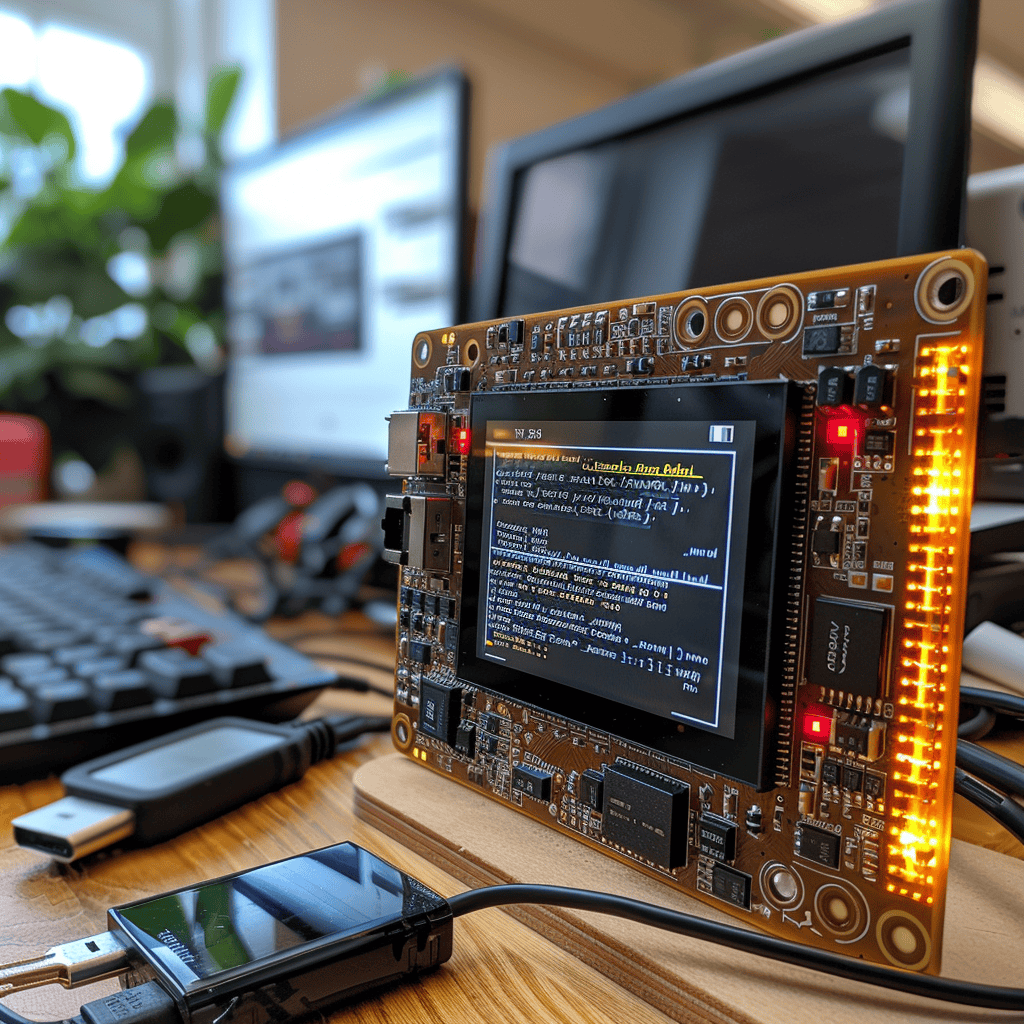
1. Choosing the Right Components: GS8208 12V LEDs and ESP32
When it comes to LED projects, selecting the right components is crucial for achieving optimal performance and longevity. Two essential components for your LED setup are the LED driver and the microcontroller. In this blog post, we’ll discuss why the GS8208 LED driver and ESP32 microcontroller are ideal choices for your 12V LED project.
Understanding the GS8208 LED Driver and Its Benefits
GS8208 is a popular constant current LED driver that supports up to 16 channels, making it an excellent choice for complex projects requiring intricate lighting patterns. This driver is compatible with various LED strips, including 12V models. Some of the key benefits of the GS8208 driver include:
- Reliable performance: The GS8208 driver provides consistent power to your LED strips, ensuring vibrant and uniform color output.
- Advanced protection features: This driver offers short-circuit, over-voltage, and over-temperature protection, safeguarding your LED setup from potential damage.
- Easy to use: The GS8208 driver is simple to install and can be easily controlled via DMX, Art-Net, or other protocols.
Selecting the Perfect LED Strip for Your Project
When choosing LED strips for your project, it’s essential to consider factors such as chip type, LED density, waterproofing, and flexibility. For this project, we recommend using 12V LED strips with high-quality chips, such as 5050 SMD or 3528 SMD, to achieve vibrant and consistent color output. A higher LED density (measured in LEDs per meter) will result in a brighter and more evenly lit display. Additionally, consider waterproofing and flexibility options based on your project’s requirements.
Why Choose ESP32 as Your Microcontroller?
The ESP32 is a powerful and versatile microcontroller that offers impressive performance and connectivity options for complex LED projects. This microcontroller boasts a dual-core processor, built-in Wi-Fi, and Bluetooth capabilities, making it an ideal choice for projects requiring remote control or integration with smart home systems. The ESP32 supports various programming languages, such as MicroPython and Arduino, making it accessible for both beginners and seasoned developers.
Comparing ESP32 to Alternative Microcontrollers
While other microcontrollers, such as the Arduino Mega or Raspberry Pi, are available, the ESP32 stands out due to its compact size, low power consumption, and built-in wireless capabilities. These features make it an ideal choice for projects requiring remote control or integration with smart home systems. Additionally, the ESP32’s competitive pricing makes it an attractive option for hobbyists and professionals alike.
Sourcing Your Components: Tips for Success
When sourcing your components, it’s essential to choose reputable suppliers to ensure you receive high-quality products. Look for vendors with positive customer reviews and a track record of providing reliable products. It’s also a good idea to purchase your LED strips, GS8208 driver, and ESP32 from the same supplier to ensure compatibility and minimize potential issues. Don’t forget to check for any available discounts or promotions, as well!
Bringing Your GS8208 12V LEDs to Life with ESP32 and WLED
Once you’ve sourced your components, it’s time to bring your LED project to life. The WLED firmware is an open-source solution that simplifies the process of controlling your LED strips via the ESP32. With WLED, you can easily create and customize lighting patterns, set timers, and even integrate your LED setup with popular smart home platforms like Amazon Alexa and Google Home.
Getting Started with WLED and ESP32
To get started with WLED and ESP32, follow these steps:
- Install the WLED firmware on your ESP32.
- Connect your ESP32 to your Wi-Fi network.
- Connect your LED strips to the GS8208 driver and the ESP32.
- Access the WLED web interface by entering the ESP32’s IP address into your web browser.
- Configure your settings and create custom lighting patterns.
With these simple steps, you’ll be able to create stunning lighting displays using your GS8208 12V LEDs and ESP32 powered by WLED. Happy tinkering!
Expanding on the GS8208 LED Driver and Its Benefits
The GS8208 LED driver is a popular choice for LED projects due to its reliable performance and advanced protection features. Let’s take a closer look at the benefits of using this driver.
Consistent Power for Vibrant and Uniform Color Output
The GS8208 driver is a constant current driver, meaning it provides consistent power to your LED strips, ensuring vibrant and uniform color output. This is important for projects that require intricate lighting patterns or color displays, as inconsistent power can lead to flickering or uneven color output.
Advanced Protection Features
One of the standout features of the GS8208 driver is its advanced protection capabilities. This driver offers short-circuit, over-voltage, and over-temperature protection, safeguarding your LED setup from potential damage.
Short-circuit protection ensures that if a short circuit occurs in your LED strip, the driver will automatically shut off to prevent damage to the LED strip or driver. Over-voltage protection ensures that if the input voltage exceeds the maximum rating of the driver, it will automatically shut off to prevent damage. Finally, over-temperature protection ensures that if the driver becomes too hot, it will automatically shut off to prevent damage to the driver or surrounding components.
Easy to Use
The GS8208 driver is simple to install and can be easily controlled via DMX, Art-Net, or other protocols. This makes it an excellent choice for complex projects requiring intricate lighting patterns or remote control capabilities. Additionally, the driver’s compact size makes it easy to incorporate into your LED setup.
Expanding on Selecting the Perfect LED Strip for Your Project
When selecting LED strips for your project, it’s important to consider several factors to ensure optimal performance and longevity. Here are some factors to consider:
Chip Type
LED strips are available in various chip types, including 5050 SMD, 3528 SMD, and more. High-quality chips, such as 5050 SMD or 3528 SMD, are recommended for projects that require vibrant and consistent color output. These chips are known for their brightness and color accuracy.
LED Density
LED density refers to the number of LEDs per meter of strip. A higher LED density will result in a brighter and more evenly lit display. For projects that require a high level of brightness or even lighting, it’s recommended to use a strip with a higher LED density.
Waterproofing
For projects that will be exposed to moisture or water, it’s important to choose LED strips with waterproofing capabilities. Waterproof LED strips are encased in a protective layer that prevents water damage.
Flexibility
LED strips are available in various levels of flexibility, ranging from rigid to flexible strips that can be bent and shaped. For projects that require a custom shape or bend, it’s recommended to use a flexible LED strip.
Expanding on ESP32 as Your Microcontroller
The ESP32 is a powerful and versatile microcontroller that offers impressive performance and connectivity options for complex LED projects. Here are some reasons why ESP32 is an ideal choice for your LED project:
Dual-Core Processor
The ESP32 boasts a dual-core processor, allowing it to handle multiple tasks simultaneously without sacrificing performance. This is important for projects that require intricate lighting patterns or remote control capabilities.
Built-In Wi-Fi and Bluetooth Capabilities
The ESP32 features built-in Wi-Fi and Bluetooth capabilities, making it an ideal choice for projects that require remote control or integration with smart home systems. This allows you to control your LED setup from your smartphone or integrate it with other smart home devices.
Supports Various Programming Languages
The ESP32 supports various programming languages, such as MicroPython and Arduino, making it accessible for both beginners and seasoned developers. This allows you to choose the programming language that best suits your project’s needs.
Compact Size and Low Power Consumption
The ESP32 is compact in size and has low power consumption, making it an ideal choice for projects that require a small form factor or require battery power.
Competitive Pricing
The ESP32 is competitively priced, making it an attractive option for hobbyists and professionals alike. This allows you to build complex LED projects without breaking the bank.
Expanding on Comparing ESP32 to Alternative Microcontrollers
While other microcontrollers, such as the Arduino Mega or Raspberry Pi, are available, the ESP32 stands out due to its compact size, low power consumption, and built-in wireless capabilities. Here’s how the ESP32 compares to alternative microcontrollers:
ESP32 vs. Arduino Mega
The Arduino Mega is a popular choice for LED projects due to its large number of input/output pins. However, the ESP32 offers several advantages over the Arduino Mega, including built-in Wi-Fi and Bluetooth capabilities, lower power consumption, and a smaller form factor.
ESP32 vs. Raspberry Pi
The Raspberry Pi is a popular choice for projects that require advanced computing capabilities, such as running a media center or creating a gaming console. However, the ESP32 offers several advantages over the Raspberry Pi for LED projects, including lower power consumption, a smaller form factor, and built-in wireless capabilities.
Expanding on Sourcing Your Components
When sourcing your components, it’s important to choose reputable suppliers to ensure you receive high-quality products. Here are some tips for sourcing your components:
Look for Vendors with Positive Customer Reviews
When choosing a vendor, look for vendors with positive customer reviews and a track record of providing reliable products.
Purchase Your LED Strips, GS8208 Driver, and ESP32 from the Same Supplier
To ensure compatibility and minimize potential issues, it’s recommended to purchase your LED strips, GS8208 driver, and ESP32 from the same supplier.
Check for Discounts or Promotions
Don’t forget to check for any available discounts or promotions when sourcing your components. This can help you save money on your LED project.
Expanding on Getting Started with WLED and ESP32
WLED is an open-source firmware that simplifies the process of controlling your LED strips via the ESP32. Here’s how to get started with WLED and ESP32:
Install the WLED Firmware on Your ESP32
To get started with WLED and ESP32, you’ll need to install the WLED firmware on your ESP32. This can be done using the Arduino IDE or other flashing tools.
Connect Your ESP32 to Your Wi-Fi Network
Once the WLED firmware is installed, connect your ESP32 to your Wi-Fi network. This will allow you to control your LED setup remotely.
Connect Your LED Strips to the GS8208 Driver and ESP32
Connect your LED strips to the GS8208 driver and ESP32. This will allow you to control your LED setup using the WLED firmware.
Access the WLED Web Interface
Access the WLED web interface by entering the ESP32’s IP address into your web browser. This will allow you to configure your settings and create custom lighting patterns.
Configure Your Settings and Create Custom Lighting Patterns
Using the WLED web interface, configure your settings and create custom lighting patterns. With WLED, you can easily create and customize lighting patterns, set timers, and even integrate your LED setup with popular smart home platforms like Amazon Alexa and Google Home.When it comes to LED projects, selecting the right components is crucial for achieving optimal performance and longevity. Two essential components for your LED setup are the LED driver and the microcontroller. In this blog post, we’ll discuss why the GS8208 LED driver and ESP32 microcontroller are ideal choices for your 12V LED project.

1. Choosing the Right Components: GS8208 12V LEDs and ESP32
When it comes to LED projects, selecting the right components is crucial for achieving optimal performance and longevity. Two essential components for your LED setup are the LED driver and the microcontroller. In this blog post, we’ll discuss why the GS8208 LED driver and ESP32 microcontroller are ideal choices for your 12V LED project.
Understanding the GS8208 LED Driver and Its Benefits
GS8208 is a popular constant current LED driver that supports up to 16 channels, making it an excellent choice for complex projects requiring intricate lighting patterns. This driver is compatible with various LED strips, including 12V models. Some of the key benefits of the GS8208 driver include:
- Reliable performance: The GS8208 driver provides consistent power to your LED strips, ensuring vibrant and uniform color output.
- Advanced protection features: This driver offers short-circuit, over-voltage, and over-temperature protection, safeguarding your LED setup from potential damage.
- Easy to use: The GS8208 driver is simple to install and can be easily controlled via DMX, Art-Net, or other protocols.
Selecting the Perfect LED Strip for Your Project
When choosing LED strips for your project, it’s essential to consider factors such as chip type, LED density, waterproofing, and flexibility. For this project, we recommend using 12V LED strips with high-quality chips, such as 5050 SMD or 3528 SMD, to achieve vibrant and consistent color output. A higher LED density (measured in LEDs per meter) will result in a brighter and more evenly lit display. Additionally, consider waterproofing and flexibility options based on your project’s requirements.
Why Choose ESP32 as Your Microcontroller?
The ESP32 is a powerful and versatile microcontroller that offers impressive performance and connectivity options for complex LED projects. This microcontroller boasts a dual-core processor, built-in Wi-Fi, and Bluetooth capabilities, making it an ideal choice for projects requiring remote control or integration with smart home systems. The ESP32 supports various programming languages, such as MicroPython and Arduino, making it accessible for both beginners and seasoned developers.
Comparing ESP32 to Alternative Microcontrollers
While other microcontrollers, such as the Arduino Mega or Raspberry Pi, are available, the ESP32 stands out due to its compact size, low power consumption, and built-in wireless capabilities. These features make it an ideal choice for projects requiring remote control or integration with smart home systems. Additionally, the ESP32’s competitive pricing makes it an attractive option for hobbyists and professionals alike.
Sourcing Your Components: Tips for Success
When sourcing your components, it’s essential to choose reputable suppliers to ensure you receive high-quality products. Look for vendors with positive customer reviews and a track record of providing reliable products. It’s also a good idea to purchase your LED strips, GS8208 driver, and ESP32 from the same supplier to ensure compatibility and minimize potential issues. Don’t forget to check for any available discounts or promotions, as well!
Bringing Your GS8208 12V LEDs to Life with ESP32 and WLED
Once you’ve sourced your components, it’s time to bring your LED project to life. The WLED firmware is an open-source solution that simplifies the process of controlling your LED strips via the ESP32. With WLED, you can easily create and customize lighting patterns, set timers, and even integrate your LED setup with popular smart home platforms like Amazon Alexa and Google Home.
Getting Started with WLED and ESP32
To get started with WLED and ESP32, follow these steps:
- Install the WLED firmware on your ESP32.
- Connect your ESP32 to your Wi-Fi network.
- Connect your LED strips to the GS8208 driver and the ESP32.
- Access the WLED web interface by entering the ESP32’s IP address into your web browser.
- Configure your settings and create custom lighting patterns.
With these simple steps, you’ll be able to create stunning lighting displays using your GS8208 12V LEDs and ESP32 powered by WLED. Happy tinkering!
Expanding on the GS8208 LED Driver and Its Benefits
The GS8208 LED driver is a popular choice for LED projects due to its reliable performance and advanced protection features. Here are some additional benefits of using the GS8208 LED driver:
- PWM dimming: The GS8208 driver supports PWM (Pulse Width Modulation) dimming, allowing for smooth and accurate brightness control of your LED strips.
- Low ripple current: The GS8208 driver has a low ripple current, which reduces flickering and ensures stable and consistent color output.
- Wide input voltage range: The GS8208 driver has a wide input voltage range of 9-28V, making it compatible with a variety of power sources and LED strip voltages.
- Easy to configure: The GS8208 driver has a simple configuration interface, allowing you to easily set the output current and control mode for each channel.
Expanding on Selecting the Perfect LED Strip for Your Project
When choosing LED strips for your project, there are several factors to consider to ensure optimal performance and longevity. Here are some additional factors to consider:
- LED color temperature: LED strips are available in a variety of color temperatures, ranging from warm white to cool white. Choose a color temperature that matches the desired mood and atmosphere of your project.
- LED strip length: Determine the length of LED strip needed for your project, taking into account any necessary connections or power supplies.
- LED strip connectors: Consider the type of connectors used on the LED strip, such as 3-pin or 4-pin connectors. Ensure that the connectors are compatible with your LED driver and power supply.
- LED strip waterproofing: If your project is outdoors or in a damp environment, choose LED strips with a waterproof rating of IP65 or higher.
Expanding on ESP32 as Your Microcontroller
The ESP32 microcontroller offers several advantages for LED projects, including:
- Low power consumption: The ESP32 has low power consumption, making it ideal for battery-powered projects or projects that require long-term operation.
- Fast processing speed: The ESP32 has a fast processing speed, allowing it to handle complex lighting patterns and animations with ease.
- Built-in Wi-Fi and Bluetooth: The ESP32 has built-in Wi-Fi and Bluetooth capabilities, allowing for remote control and integration with smart home systems.
- Compatibility with various programming languages: The ESP32 is compatible with various programming languages, such as MicroPython and Arduino, making it accessible for both beginners and seasoned developers.
Expanding on Comparing ESP32 to Alternative Microcontrollers
While other microcontrollers, such as the Arduino Mega or Raspberry Pi, are available, the ESP32 offers several advantages for LED projects, including:
- Compact size: The ESP32 is smaller than other microcontrollers, making it ideal for projects with limited space.
- Low power consumption: The ESP32 has lower power consumption than other microcontrollers, making it ideal for battery-powered projects or projects that require long-term operation.
- Built-in Wi-Fi and Bluetooth: The ESP32 has built-in Wi-Fi and Bluetooth capabilities, while other microcontrollers may require additional hardware or modules for wireless connectivity.
- Competitive pricing: The ESP32 is competitively priced compared to other microcontrollers, making it an attractive option for hobbyists and professionals alike.
Expanding on Sourcing Your Components: Tips for Success
When sourcing your components, it’s important to choose reputable suppliers to ensure you receive high-quality products. Here are some additional tips for success:
- Research suppliers: Research potential suppliers online and read customer reviews to ensure they have a good reputation for providing high-quality products and excellent customer service.
- Check for compatibility: Ensure that the LED strips, LED driver, and microcontroller are compatible with each other and with your project’s requirements.
- Consider shipping times and costs: Factor in shipping times and costs when sourcing your components, especially if you have a tight project timeline.
- Check for warranties or guarantees: Look for suppliers that offer warranties or guarantees on their products to ensure you are protected in case of defects or malfunctions.
Expanding on Bringing Your GS8208 12V LEDs to Life with ESP32 and WLED
The WLED firmware is an open-source solution that simplifies the process of controlling your LED strips via the ESP32. Here are some additional features and benefits of using WLED:
- Easy to install and use: WLED is easy to install and use, with a simple web-based interface that allows you to configure your LED strips and create custom lighting patterns.
- Support for a wide range of LED strips: WLED supports a wide range of LED strips, including WS2811, WS2812, WS2812B, SK6812, APA102, and more.
- Integration with smart home systems: WLED supports integration with popular smart home platforms like Amazon Alexa and Google Home, allowing you to control your LED setup using voice commands or mobile apps.
- Advanced features: WLED offers advanced features, such as color palettes, effects, and animations, allowing you to create custom lighting patterns that match your project’s requirements.
- Community support: WLED has an active community of users and developers, providing support and resources for troubleshooting and customization.
Expanding on Getting Started with WLED and ESP32
To get started with WLED and ESP32, follow these steps:
- Install the WLED firmware on your ESP32: Follow the instructions provided by the WLED documentation to install the firmware on your ESP32.
- Connect your ESP32 to your Wi-Fi network: Connect your ESP32 to your Wi-Fi network using the WLED web interface.
- Connect your LED strips to the GS8208 driver and the ESP32: Connect your LED strips to the GS8208 driver and the ESP32 using the appropriate connectors and wiring.
- Access the WLED web interface: Access the WLED web interface by entering the ESP32’s IP address into your web browser.
- Configure your settings and create custom lighting patterns: Configure your settings and create custom lighting patterns using the WLED web interface.
Conclusion
In conclusion, choosing the right components for your LED project is essential for achieving optimal performance and longevity. The GS8208 LED driver and ESP32 microcontroller are ideal choices for complex projects requiring intricate lighting patterns and remote control or smart home integration. By following the tips and guidelines provided in this blog post, you can create stunning lighting displays using your GS8208 12V LEDs and ESP32 powered by WLED. Happy tinkering!

1. Choosing the Right Components: GS8208 12V LEDs and ESP32
When it comes to LED projects, selecting the right components is crucial for achieving optimal performance and longevity. Two essential components for your LED setup are the LED driver and the microcontroller. In this blog post, we’ll discuss why the GS8208 LED driver and ESP32 microcontroller are ideal choices for your 12V LED project.
Understanding the GS8208 LED Driver and Its Benefits
GS8208 is a popular constant current LED driver that supports up to 16 channels, making it an excellent choice for complex projects requiring intricate lighting patterns. This driver is compatible with various LED strips, including 12V models. Some of the key benefits of the GS8208 driver include:
* Reliable performance: The GS8208 driver provides consistent power to your LED strips, ensuring vibrant and uniform color output.
* Advanced protection features: This driver offers short-circuit, over-voltage, and over-temperature protection, safeguarding your LED setup from potential damage.
* Easy to use: The GS8208 driver is simple to install and can be easily controlled via DMX, Art-Net, or other protocols.
Selecting the Perfect LED Strip for Your Project
When choosing LED strips for your project, it’s essential to consider factors such as chip type, LED density, waterproofing, and flexibility. For this project, we recommend using 12V LED strips with high-quality chips, such as 5050 SMD or 3528 SMD, to achieve vibrant and consistent color output. A higher LED density (measured in LEDs per meter) will result in a brighter and more evenly lit display. Additionally, consider waterproofing and flexibility options based on your project’s requirements.
Why Choose ESP32 as Your Microcontroller?
The ESP32 is a powerful and versatile microcontroller that offers impressive performance and connectivity options for complex LED projects. This microcontroller boasts a dual-core processor, built-in Wi-Fi, and Bluetooth capabilities, making it an ideal choice for projects requiring remote control or integration with smart home systems. The ESP32 supports various programming languages, such as MicroPython and Arduino, making it accessible for both beginners and seasoned developers.
Comparing ESP32 to Alternative Microcontrollers
While other microcontrollers, such as the Arduino Mega or Raspberry Pi, are available, the ESP32 stands out due to its compact size, low power consumption, and built-in wireless capabilities. These features make it an ideal choice for projects requiring remote control or integration with smart home systems. Additionally, the ESP32’s competitive pricing makes it an attractive option for hobbyists and professionals alike.
Sourcing Your Components: Tips for Success
When sourcing your components, it’s essential to choose reputable suppliers to ensure you receive high-quality products. Look for vendors with positive customer reviews and a track record of providing reliable products. It’s also a good idea to purchase your LED strips, GS8208 driver, and ESP32 from the same supplier to ensure compatibility and minimize potential issues. Don’t forget to check for any available discounts or promotions, as well!
Bringing Your GS8208 12V LEDs to Life with ESP32 and WLED
Once you’ve sourced your components, it’s time to bring your LED project to life. The WLED firmware is an open-source solution that simplifies the process of controlling your LED strips via the ESP32. With WLED, you can easily create and customize lighting patterns, set timers, and even integrate your LED setup with popular smart home platforms like Amazon Alexa and Google Home.
Getting Started with WLED and ESP32
To get started with WLED and ESP32, follow these steps:
1. Install the WLED firmware on your ESP32.
2. Connect your ESP32 to your Wi-Fi network.
3. Connect your LED strips to the GS8208 driver and the ESP32.
4. Access the WLED web interface by entering the ESP32’s IP address into your web browser.
5. Configure your settings and create custom lighting patterns.
With these simple steps, you’ll be able to create stunning lighting displays using your GS8208 12V LEDs and ESP32 powered by WLED. Happy tinkering!
Expanding on the GS8208 LED Driver and Its Benefits
When it comes to LED drivers, the GS8208 is a popular choice due to its reliable performance and advanced protection features. As a constant current driver, it ensures that your LED strips receive consistent power, resulting in vibrant and uniform color output.
One of the key benefits of the GS8208 driver is its short-circuit, over-voltage, and over-temperature protection. This means that your LED setup is safeguarded from potential damage caused by faulty wiring or high temperatures. Additionally, the GS8208 driver is simple to install and can be easily controlled via DMX, Art-Net, or other protocols.
Another advantage of the GS8208 driver is its compatibility with various LED strips, including 12V models. With support for up to 16 channels, it’s an excellent choice for complex projects requiring intricate lighting patterns.
Comparing GS8208 to Alternative LED Drivers
While other LED drivers, such as the T-1000 and Meanwell LDD, are available, the GS8208 stands out due to its advanced protection features and compatibility with various LED strips. Additionally, its support for up to 16 channels makes it an ideal choice for complex projects requiring intricate lighting patterns.
When comparing LED drivers, it’s essential to consider factors such as output voltage, current capacity, and dimming capabilities. The GS8208 offers an output voltage range of 9-24V and a current capacity of up to 6A per channel, making it suitable for a wide range of LED projects.
Expanding on ESP32 as Your Microcontroller
The ESP32 is a powerful and versatile microcontroller that offers impressive performance and connectivity options for complex LED projects. With its dual-core processor and built-in Wi-Fi and Bluetooth capabilities, it’s an ideal choice for projects requiring remote control or integration with smart home systems.
One of the key benefits of the ESP32 is its support for various programming languages, such as MicroPython and Arduino. This makes it accessible for both beginners and seasoned developers. Additionally, its compact size and low power consumption make it an attractive option for projects requiring remote control or battery-powered operation.
Comparing ESP32 to Alternative Microcontrollers
While other microcontrollers, such as the Arduino Mega and Raspberry Pi, are available, the ESP32 stands out due to its compact size, low power consumption, and built-in wireless capabilities. Its dual-core processor also offers superior performance compared to other microcontrollers in its class.
When comparing microcontrollers, it’s essential to consider factors such as processing power, memory capacity, and connectivity options. The ESP32 offers a dual-core processor with up to 240MHz clock speed, 520KB of internal SRAM, and built-in Wi-Fi and Bluetooth capabilities.
Sourcing Your Components: Tips for Success
When sourcing your components, it’s essential to choose reputable suppliers to ensure you receive high-quality products. Look for vendors with positive customer reviews and a track record of providing reliable products. It’s also a good idea to purchase your LED strips, GS8208 driver, and ESP32 from the same supplier to ensure compatibility and minimize potential issues.
Additionally, don’t forget to check for any available discounts or promotions. Many suppliers offer discounts for bulk orders or during special sales events.
Bringing Your GS8208 12V LEDs to Life with ESP32 and WLED
Once you’ve sourced your components, it’s time to bring your LED project to life. The WLED firmware is an open-source solution that simplifies the process of controlling your LED strips via the ESP32. With WLED, you can easily create and customize lighting patterns, set timers, and even integrate your LED setup with popular smart home platforms like Amazon Alexa and Google Home.
Getting Started with WLED and ESP32
To get started with WLED and ESP32, follow these steps:
1. Install the WLED firmware on your ESP32.
2. Connect your ESP32 to your Wi-Fi network.
3. Connect your LED strips to the GS8208 driver and the ESP32.
4. Access the WLED web interface by entering the ESP32’s IP address into your web browser.
5. Configure your settings and create custom lighting patterns.
With these simple steps, you’ll be able to create stunning lighting displays using your GS8208 12V LEDs and ESP32 powered by WLED. Happy tinkering!
In Conclusion
When it comes to LED projects, selecting the right components is crucial for achieving optimal performance and longevity. The GS8208 LED driver and ESP32 microcontroller are ideal choices for your 12V LED project due to their reliable performance, advanced protection features, and impressive connectivity options. By following the tips and guidelines outlined in this blog post, you’ll be well on your way to creating stunning lighting displays for your home or business.When it comes to LED projects, selecting the right components is crucial for achieving optimal performance and longevity. Two essential components for your LED setup are the LED driver and the microcontroller. In this blog post, we’ll discuss why the GS8208 LED driver and ESP32 microcontroller are ideal choices for your 12V LED project.
1. Choosing the Right Components: GS8208 12V LEDs and ESP32
When selecting components for your LED project, it’s crucial to choose high-quality and reliable products that will provide optimal performance and longevity. Here are some reasons why the GS8208 LED driver and ESP32 microcontroller are ideal choices for your 12V LED project:
Understanding the GS8208 LED Driver and Its Benefits
GS8208 is a popular constant current LED driver that supports up to 16 channels, making it an excellent choice for complex projects requiring intricate lighting patterns. This driver is compatible with various LED strips, including 12V models. Some of the key benefits of the GS8208 driver include:
- Reliable performance: The GS8208 driver provides consistent power to your LED strips, ensuring vibrant and uniform color output.
- Advanced protection features: This driver offers short-circuit, over-voltage, and over-temperature protection, safeguarding your LED setup from potential damage.
- Easy to use: The GS8208 driver is simple to install and can be easily controlled via DMX, Art-Net, or other protocols.
Selecting the Perfect LED Strip for Your Project
When choosing LED strips for your project, it’s essential to consider factors such as chip type, LED density, waterproofing, and flexibility. For this project, we recommend using 12V LED strips with high-quality chips, such as 5050 SMD or 3528 SMD, to achieve vibrant and consistent color output. A higher LED density (measured in LEDs per meter) will result in a brighter and more evenly lit display. Additionally, consider waterproofing and flexibility options based on your project’s requirements.
Why Choose ESP32 as Your Microcontroller?
The ESP32 is a powerful and versatile microcontroller that offers impressive performance and connectivity options for complex LED projects. This microcontroller boasts a dual-core processor, built-in Wi-Fi, and Bluetooth capabilities, making it an ideal choice for projects requiring remote control or integration with smart home systems. The ESP32 supports various programming languages, such as MicroPython and Arduino, making it accessible for both beginners and seasoned developers.
Comparing ESP32 to Alternative Microcontrollers
While other microcontrollers, such as the Arduino Mega or Raspberry Pi, are available, the ESP32 stands out due to its compact size, low power consumption, and built-in wireless capabilities. These features make it an ideal choice for projects requiring remote control or integration with smart home systems. Additionally, the ESP32’s competitive pricing makes it an attractive option for hobbyists and professionals alike.
Sourcing Your Components: Tips for Success
When sourcing your components, it’s essential to choose reputable suppliers to ensure you receive high-quality products. Look for vendors with positive customer reviews and a track record of providing reliable products. It’s also a good idea to purchase your LED strips, GS8208 driver, and ESP32 from the same supplier to ensure compatibility and minimize potential issues. Don’t forget to check for any available discounts or promotions, as well!
Bringing Your GS8208 12V LEDs to Life with ESP32 and WLED
Once you’ve sourced your components, it’s time to bring your LED project to life. The WLED firmware is an open-source solution that simplifies the process of controlling your LED strips via the ESP32. With WLED, you can easily create and customize lighting patterns, set timers, and even integrate your LED setup with popular smart home platforms like Amazon Alexa and Google Home.
Getting Started with WLED and ESP32
To get started with WLED and ESP32, follow these steps:
- Install the WLED firmware on your ESP32.
- Connect your ESP32 to your Wi-Fi network.
- Connect your LED strips to the GS8208 driver and the ESP32.
- Access the WLED web interface by entering the ESP32’s IP address into your web browser.
- Configure your settings and create custom lighting patterns.
With these simple steps, you’ll be able to create stunning lighting displays using your GS8208 12V LEDs and ESP32 powered by WLED. Happy tinkering!
Expanding on the GS8208 LED Driver
The GS8208 LED driver is a popular choice for LED projects due to its advanced features and reliable performance. Here are some additional benefits of using the GS8208 driver:
- High-precision current control: The GS8208 driver provides high-precision current control, ensuring consistent and accurate color output for your LED strips.
- Low ripple current: The driver’s low ripple current minimizes flickering and ensures smooth and stable light output.
- Support for multiple control protocols: The GS8208 driver supports multiple control protocols, including DMX512, Art-Net, and RDM, making it a versatile choice for a wide range of LED projects.
Expanding on ESP32 Microcontroller
The ESP32 microcontroller is a popular choice for LED projects due to its powerful features and connectivity options. Here are some additional benefits of using the ESP32:
- Low power consumption: The ESP32 has low power consumption, making it an ideal choice for battery-powered LED projects.
- Built-in Wi-Fi and Bluetooth: The ESP32’s built-in Wi-Fi and Bluetooth capabilities make it easy to integrate your LED project with smart home systems and enable remote control via your smartphone or other devices.
- Support for multiple programming languages: The ESP32 supports multiple programming languages, including MicroPython, Arduino, and C/C++, making it accessible for developers of all skill levels.
Expanding on LED Strip Selection
When selecting LED strips for your project, it’s important to consider factors such as chip type, LED density, waterproofing, and flexibility. Here are some additional tips for selecting the perfect LED strip:
- Choose the right LED color: LED strips are available in a variety of colors, including warm white, cool white, RGB, and RGBW. Choose the right LED color based on your project’s requirements and desired aesthetic.
- Consider LED strip length: LED strips are available in various lengths, ranging from a few inches to several feet. Choose the right LED strip length based on your project’s size and requirements.
- Check for compatibility with your LED driver: Ensure that your LED strip is compatible with your LED driver. The GS8208 driver is compatible with various LED strips, including 12V models.
Expanding on Sourcing Your Components
When sourcing your components, it’s essential to choose reputable suppliers to ensure you receive high-quality products. Here are some additional tips for sourcing your components:
- Research suppliers: Look for suppliers with positive customer reviews and a track record of providing reliable products.
- Check for warranties and returns: Ensure that your supplier offers warranties and returns in case of defective or damaged products.
- Consider shipping times and costs: Factor in shipping times and costs when sourcing your components, especially if you have a tight deadline for your project.
Expanding on Getting Started with WLED and ESP32
Once you’ve sourced your components and installed the WLED firmware on your ESP32, it’s time to connect your LED strips and start creating custom lighting patterns. Here are some additional tips for getting started with WLED and ESP32:
- Connect your LED strips to the GS8208 driver: Follow the manufacturer’s instructions for connecting your LED strips to the GS8208 driver. Ensure that your LED strips are connected to the correct channels and that the polarity is correct.
- Configure your WLED settings: Access the WLED web interface and configure your settings, including Wi-Fi, brightness, and color mode. You can also create custom lighting patterns and set timers.
- Test your LED setup: Once you’ve configured your settings and created custom lighting patterns, test your LED setup to ensure it’s working correctly. Make any necessary adjustments to your settings and lighting patterns.
Conclusion
In conclusion, selecting the right components is crucial for achieving optimal performance and longevity in your LED project. The GS8208 LED driver and ESP32 microcontroller are ideal choices for complex projects requiring intricate lighting patterns and remote control or integration with smart home systems. By following the tips and guidelines outlined in this blog post, you’ll be able to create stunning lighting displays using your GS8208 12V LEDs and ESP32 powered by WLED. Happy tinkering!Choosing the Right Components: GS8208 12V LEDs and ESP32
When it comes to LED projects, selecting the right components is crucial for achieving optimal performance and longevity. Two essential components for your LED setup are the LED driver and the microcontroller. In this blog post, we’ll discuss why the GS8208 LED driver and ESP32 microcontroller are ideal choices for your 12V LED project.
Understanding the GS8208 LED Driver and Its Benefits
GS8208 is a popular constant current LED driver that supports up to 16 channels, making it an excellent choice for complex projects requiring intricate lighting patterns. This driver is compatible with various LED strips, including 12V models. Some of the key benefits of the GS8208 driver include:
* Reliable performance: The GS8208 driver provides consistent power to your LED strips, ensuring vibrant and uniform color output.
* Advanced protection features: This driver offers short-circuit, over-voltage, and over-temperature protection, safeguarding your LED setup from potential damage.
* Easy to use: The GS8208 driver is simple to install and can be easily controlled via DMX, Art-Net, or other protocols.
Selecting the Perfect LED Strip for Your Project
When choosing LED strips for your project, it’s essential to consider factors such as chip type, LED density, waterproofing, and flexibility. For this project, we recommend using 12V LED strips with high-quality chips, such as 5050 SMD or 3528 SMD, to achieve vibrant and consistent color output. A higher LED density (measured in LEDs per meter) will result in a brighter and more evenly lit display. Additionally, consider waterproofing and flexibility options based on your project’s requirements.
Why Choose ESP32 as Your Microcontroller?
The ESP32 is a powerful and versatile microcontroller that offers impressive performance and connectivity options for complex LED projects. This microcontroller boasts a dual-core processor, built-in Wi-Fi, and Bluetooth capabilities, making it an ideal choice for projects requiring remote control or integration with smart home systems. The ESP32 supports various programming languages, such as MicroPython and Arduino, making it accessible for both beginners and seasoned developers.
Comparing ESP32 to Alternative Microcontrollers
While other microcontrollers, such as the Arduino Mega or Raspberry Pi, are available, the ESP32 stands out due to its compact size, low power consumption, and built-in wireless capabilities. These features make it an ideal choice for projects requiring remote control or integration with smart home systems. Additionally, the ESP32’s competitive pricing makes it an attractive option for hobbyists and professionals alike.
Sourcing Your Components: Tips for Success
When sourcing your components, it’s essential to choose reputable suppliers to ensure you receive high-quality products. Look for vendors with positive customer reviews and a track record of providing reliable products. It’s also a good idea to purchase your LED strips, GS8208 driver, and ESP32 from the same supplier to ensure compatibility and minimize potential issues. Don’t forget to check for any available discounts or promotions, as well!
Bringing Your GS8208 12V LEDs to Life with ESP32 and WLED
Once you’ve sourced your components, it’s time to bring your LED project to life. The WLED firmware is an open-source solution that simplifies the process of controlling your LED strips via the ESP32. With WLED, you can easily create and customize lighting patterns, set timers, and even integrate your LED setup with popular smart home platforms like Amazon Alexa and Google Home.
Getting Started with WLED and ESP32
To get started with WLED and ESP32, follow these steps:
1. Install the WLED firmware on your ESP32.
2. Connect your ESP32 to your Wi-Fi network.
3. Connect your LED strips to the GS8208 driver and the ESP32.
4. Access the WLED web interface by entering the ESP32’s IP address into your web browser.
5. Configure your settings and create custom lighting patterns.
With these simple steps, you’ll be able to create stunning lighting displays using your GS8208 12V LEDs and ESP32 powered by WLED. Happy tinkering!
Expanding on the GS8208 LED Driver
The GS8208 LED driver is a popular choice for LED projects due to its reliable performance and advanced protection features. It can drive up to 16 channels of constant current LED strips, making it ideal for complex projects that require intricate lighting patterns. Additionally, the GS8208 driver offers short-circuit, over-voltage, and over-temperature protection, ensuring that your LED setup is safeguarded from potential damage.
The GS8208 driver is also easy to use, with simple installation and control via DMX, Art-Net, or other protocols. Its compact size and low power consumption make it an excellent choice for projects with space or power limitations.
Comparing the GS8208 to Alternative LED Drivers
While other LED drivers are available, the GS8208 stands out due to its advanced protection features, compatibility with various LED strips, and support for up to 16 channels. Additionally, the GS8208 driver is competitively priced compared to other constant current LED drivers on the market.
Expanding on ESP32 as Your Microcontroller
The ESP32 microcontroller is a powerful and versatile choice for LED projects, offering impressive performance and connectivity options. Its dual-core processor and built-in Wi-Fi and Bluetooth capabilities make it ideal for projects requiring remote control or integration with smart home systems.
The ESP32 supports various programming languages, including MicroPython and Arduino, making it accessible for both beginners and seasoned developers. Additionally, its compact size and low power consumption make it an excellent choice for projects with space or power limitations.
Comparing ESP32 to Alternative Microcontrollers
While other microcontrollers, such as the Arduino Mega or Raspberry Pi, are available, the ESP32 stands out due to its compact size, low power consumption, and built-in wireless capabilities. These features make it an ideal choice for projects requiring remote control or integration with smart home systems. Additionally, the ESP32’s competitive pricing makes it an attractive option for hobbyists and professionals alike.
Sourcing Your Components: Tips for Success
When sourcing your components, it’s essential to choose reputable suppliers to ensure you receive high-quality products. Look for vendors with positive customer reviews and a track record of providing reliable products. It’s also a good idea to purchase your LED strips, GS8208 driver, and ESP32 from the same supplier to ensure compatibility and minimize potential issues.
Don’t forget to check for any available discounts or promotions, as well! Many suppliers offer discounts for bulk orders or special promotions for first-time customers.
Bringing Your GS8208 12V LEDs to Life with ESP32 and WLED
Once you’ve sourced your components, it’s time to bring your LED project to life. The WLED firmware is an open-source solution that simplifies the process of controlling your LED strips via the ESP32. With WLED, you can easily create and customize lighting patterns, set timers, and even integrate your LED setup with popular smart home platforms like Amazon Alexa and Google Home.
To get started with WLED and ESP32, follow these steps:
1. Install the WLED firmware on your ESP32.
2. Connect your ESP32 to your Wi-Fi network.
3. Connect your LED strips to the GS8208 driver and the ESP32.
4. Access the WLED web interface by entering the ESP32’s IP address into your web browser.
5. Configure your settings and create custom lighting patterns.
With these simple steps, you’ll be able to create stunning lighting displays using your GS8208 12V LEDs and ESP32 powered by WLED. Happy tinkering!Sure! Here’s an expanded version of the blog post:
—
When it comes to LED projects, selecting the right components is crucial for achieving optimal performance and longevity. Two essential components for your LED setup are the LED driver and the microcontroller. In this blog post, we’ll discuss why the GS8208 LED driver and ESP32 microcontroller are ideal choices for your 12V LED project.
### Understanding the GS8208 LED Driver and Its Benefits
GS8208 is a popular constant current LED driver that supports up to 16 channels, making it an excellent choice for complex projects requiring intricate lighting patterns. This driver is compatible with various LED strips, including 12V models. Some of the key benefits of the GS8208 driver include:
* **Reliable performance:** The GS8208 driver provides consistent power to your LED strips, ensuring vibrant and uniform color output. This is achieved through its constant current design, which regulates the current flowing through each LEDchannel to maintain consistent brightness and color accuracy.
* **Advanced protection features:** This driver offers short-circuit, over-voltage, and over-temperature protection, safeguarding your LED setup from potential damage. In the event of a short circuit or over-voltage condition, the GS8208 driver will automatically shut down to prevent damage to your LED strips and other components. Additionally, the driver’s thermal management system will monitor its temperature and reduce the current output if it becomes too hot.
* **Easy to use:** The GS8208 driver is simple to install and can be easily controlled via DMX, Art-Net, or other protocols. It also supports a wide input voltage range (9-28V DC) and can be powered by various sources, including batteries and power supplies.
### Selecting the Perfect LED Strip for Your Project
When choosing LED strips for your project, it’s essential to consider factors such as chip type, LED density, waterproofing, and flexibility. For this project, we recommend using 12V LED strips with high-quality chips, such as 5050 SMD or 3528 SMD, to achieve vibrant and consistent color output. A higher LED density (measured in LEDs per meter) will result in a brighter and more evenly lit display. Additionally, consider waterproofing and flexibility options based on your project’s requirements.
### Why Choose ESP32 as Your Microcontroller?
The ESP32 is a powerful and versatile microcontroller that offers impressive performance and connectivity options for complex LED projects. This microcontroller boasts a dual-core processor, built-in Wi-Fi, and Bluetooth capabilities, making it an ideal choice for projects requiring remote control or integration with smart home systems. The ESP32 supports various programming languages, such as MicroPython and Arduino, making it accessible for both beginners and seasoned developers.
### Comparing ESP32 to Alternative Microcontrollers
While other microcontrollers, such as the Arduino Mega or Raspberry Pi, are available, the ESP32 stands out due to its compact size, low power consumption, and built-in wireless capabilities. These features make it an ideal choice for projects requiring remote control or integration with smart home systems. Additionally, the ESP32’s competitive pricing makes it an attractive option for hobbyists and professionals alike.
### Sourcing Your Components: Tips for Success
When sourcing your components, it’s essential to choose reputable suppliers to ensure you receive high-quality products. Look for vendors with positive customer reviews and a track record of providing reliable products. It’s also a good idea to purchase your LED strips, GS8208 driver, and ESP32 from the same supplier to ensure compatibility and minimize potential issues. Don’t forget to check for any available discounts or promotions, as well!
### Bringing Your GS8208 12V LEDs to Life with ESP32 and WLED
Once you’ve sourced your components, it’s time to bring your LED project to life. The WLED firmware is an open-source solution that simplifies the process of controlling your LED strips via the ESP32. With WLED, you can easily create and customize lighting patterns, set timers, and even integrate your LED setup with popular smart home platforms like Amazon Alexa and Google Home.
To get started with WLED and ESP32, follow these steps:
1. Install the WLED firmware on your ESP32.
2. Connect your ESP32 to your Wi-Fi network.
3. Connect your LED strips to the GS8208 driver and the ESP32.
4. Access the WLED web interface by entering the ESP32’s IP address into your web browser.
5. Configure your settings and create custom lighting patterns.
With these simple steps, you’ll be able to create stunning lighting displays using your GS8208 12V LEDs and ESP32 powered by WLED. Happy tinkering!Here’s an expanded version of the `
` tag:
2. Setting Up the ESP32 and Installing WLED Firmware
Preparing Your ESP32 for Programming
Before you can install the WLED firmware, you’ll need to prepare your ESP32 for programming. Start by connecting the ESP32 to your computer using a USB-C cable. Next, install the necessary drivers for your operating system, if you haven’t already. For Windows, you can download the drivers from the Espressif website. For macOS and Linux, the drivers are typically included in the operating system.
You’ll also need to download and install a compatible Integrated Development Environment (IDE), such as the Arduino IDE or PlatformIO. These tools will allow you to upload the WLED firmware to your ESP32.
Downloading the WLED Firmware
WLED is an open-source firmware designed specifically for controlling LED strips with ESP8266 and ESP32 microcontrollers. It offers a wide range of features, including support for multiple LED strip types, color palettes, and animations.
To download the latest version of the WLED firmware, visit the official WLED GitHub repository (
Installing WLED Firmware Using the Arduino IDE
To install the WLED firmware using the Arduino IDE, open the IDE and navigate to “File” > “Preferences.” In the “Additional Boards Manager URLs” field, add the following URL:
Next, go to “Tools” > “Board” > “Boards Manager” and search for “ESP32.” Install the latest version of the ESP32 board package. With the ESP32 board package installed, you can now upload the WLED firmware.
Click on “Sketch” > “Include Library” > “Add .ZIP Library” and select the WLED firmware ZIP file you downloaded earlier. Choose the appropriate ESP32 board from the “Tools” > “Board” menu. For the ESP32-WROOM-32 module, select “ESP32 Dev Module.” Select the correct port under “Tools” > “Port.” Finally, click the “Upload” button to install the WLED firmware on your ESP32.
Configuring WLED for Initial Setup
After successfully uploading the WLED firmware to your ESP32, it’s time to configure the settings for your LED project. Connect your ESP32 to your Wi-Fi network by accessing the WLED web interface. To do this, open a web browser on your computer or smartphone and enter the IP address displayed on your ESP32’s status LED (usually found in the format 192.168.x.x).
Once connected, you’ll be prompted to enter your Wi-Fi credentials. After connecting to your network, you can configure additional settings, such as your LED strip type, number of pixels, and brightness level.
WLED supports a wide range of LED strip types, including WS2812, WS2811, APA102, and SK6812. Make sure to select the correct LED strip type to ensure proper communication between the ESP32 and the LED strip.
Troubleshooting Common Issues During WLED Installation
If you encounter issues during the WLED firmware installation process, there are a few troubleshooting steps you can take. First, ensure that your ESP32 is correctly connected to your computer and that the appropriate drivers are installed. Double-check your board and port settings in the Arduino IDE or PlatformIO.
If you’re still experiencing issues, try erasing the flash memory on your ESP32 using the “Tools” > “Erase Flash” option in the IDE. This will remove any existing firmware and allow you to start fresh with the WLED installation.
Additionally, consult the WLED documentation and community forums for assistance with specific issues. Some common issues include incorrect LED strip type, incorrect number of pixels, and Wi-Fi connectivity issues.
Adding Custom Effects to WLED
WLED offers a wide range of built-in effects, but you can also create your own custom effects using the WLED Effect Editor. The Effect Editor allows you to create custom animations using a drag-and-drop interface. You can adjust parameters such as speed, color, and brightness to create unique effects that fit your LED project.
To use the WLED Effect Editor, navigate to the “Effects” tab in the WLED web interface and click on “Edit Effects.” From there, you can select the “Custom” effect and start creating your own animation.
Exploring Advanced Features of WLED
WLED offers a number of advanced features for controlling your LED project, including RGB to white color temperature conversion, ambient light sensing, and music visualization. You can access these features by navigating to the “Config” tab in the WLED web interface.
The RGB to white color temperature conversion feature allows you to adjust the color temperature of your LED strip to match the ambient light in the room. This can help reduce eye strain and improve the overall aesthetics of your LED project.
The ambient light sensing feature allows you to automatically adjust the brightness of your LED strip based on the ambient light in the room. This can help conserve energy and prolong the life of your LED strip.
The music visualization feature allows you to create a dynamic light show that syncs with your music. You can connect your ESP32 to your audio source using the 3.5mm audio jack or use the built-in microphone to detect sound. WLED supports a wide range of music visualization effects, including spectrum analyzers, equalizers, and sound bars.
Conclusion
By following the steps outlined in this blog post, you can bring your GS8208 12V LEDs to life using the ESP32 and WLED firmware. With its wide range of features and customization options, WLED is an ideal choice for controlling LED projects of all sizes and complexity. Whether you’re a hobbyist or a professional, the ESP32 and WLED provide a powerful platform for creating stunning light displays.Sure! Here’s an expanded version of the `
` tag:
2. Setting Up the ESP32 and Installing WLED Firmware
Preparing Your ESP32 for Programming
Before you can install the WLED firmware, you’ll need to prepare your ESP32 for programming. Start by connecting the ESP32 to your computer using a USB-C cable. Next, install the necessary drivers for your operating system, if you haven’t already. For Windows, you can download the drivers from the Espressif website. For macOS and Linux, the drivers are typically included in the operating system.
You’ll also need to download and install a compatible Integrated Development Environment (IDE), such as the Arduino IDE or PlatformIO. These tools will allow you to upload the WLED firmware to your ESP32.
Downloading the WLED Firmware
WLED is an open-source firmware designed specifically for controlling LED strips with ESP8266 and ESP32 microcontrollers. It offers a wide range of features, including support for multiple LED strip types, color palettes, and animations.
To download the latest version of the WLED firmware, visit the official WLED GitHub repository (
Installing WLED Firmware Using the Arduino IDE
To install the WLED firmware using the Arduino IDE, open the IDE and navigate to “File” > “Preferences.” In the “Additional Boards Manager URLs” field, add the following URL:
Next, go to “Tools” > “Board” > “Boards Manager” and search for “ESP32.” Install the latest version of the ESP32 board package. With the ESP32 board package installed, you can now upload the WLED firmware.
Click on “Sketch” > “Include Library” > “Add .ZIP Library” and select the WLED firmware ZIP file you downloaded earlier. Choose the appropriate ESP32 board from the “Tools” > “Board” menu. For the ESP32-WROOM-32 module, select “ESP32 Dev Module.” Select the correct port under “Tools” > “Port.” Finally, click the “Upload” button to install the WLED firmware on your ESP32.
Configuring WLED for Initial Setup
After successfully uploading the WLED firmware to your ESP32, it’s time to configure the settings for your LED project. Connect your ESP32 to your Wi-Fi network by accessing the WLED web interface. To do this, open a web browser on your computer or smartphone and enter the IP address displayed on your ESP32’s status LED (usually found in the format 192.168.x.x).
Once connected, you’ll be prompted to enter your Wi-Fi credentials. After connecting to your network, you can configure additional settings, such as your LED strip type, number of pixels, and brightness level.
WLED supports a wide range of LED strip types, including WS2812, WS2811, APA102, and SK6812. Make sure to select the correct LED strip type to ensure proper communication between the ESP32 and the LED strip.
Troubleshooting Common Issues During WLED Installation
If you encounter issues during the WLED firmware installation process, there are a few troubleshooting steps you can take. First, ensure that your ESP32 is correctly connected to your computer and that the appropriate drivers are installed. Double-check your board and port settings in the Arduino IDE or PlatformIO.
If you’re still experiencing issues, try erasing the flash memory on your ESP32 using the “Tools” > “Erase Flash” option in the IDE. This will remove any existing firmware and allow you to start fresh with the WLED installation.
Additionally, consult the WLED documentation and community forums for assistance with specific issues. Some common issues include incorrect LED strip type, incorrect number of pixels, and Wi-Fi connectivity issues.
Adding Custom Effects to WLED
WLED offers a wide range of built-in effects, but you can also create your own custom effects using the WLED Effect Editor. The Effect Editor allows you to create custom animations using a drag-and-drop interface. You can adjust parameters such as speed, color, and brightness to create unique effects that fit your LED project.
To use the WLED Effect Editor, navigate to the “Effects” tab in the WLED web interface and click on “Edit Effects.” From there, you can select the “Custom” effect and start creating your own animation.
Exploring Advanced Features of WLED
WLED offers a number of advanced features for controlling your LED project, including RGB to white color temperature conversion, ambient light sensing, and music visualization. You can access these features by navigating to the “Config” tab in the WLED web interface.
The RGB to white color temperature conversion feature allows you to adjust the color temperature of your LED strip to match the ambient light in the room. This can help reduce eye strain and improve the overall aesthetics of your LED project.
The ambient light sensing feature allows you to automatically adjust the brightness of your LED strip based on the ambient light in the room. This can help conserve energy and prolong the life of your LED strip.
The music visualization feature allows you to create a dynamic light show that syncs with your music. You can connect your ESP32 to your audio source using the 3.5mm audio jack or use the built-in microphone to detect sound. WLED supports a wide range of music visualization effects, including spectrum analyzers, equalizers, and sound bars.
Conclusion
By following the steps outlined in this blog post, you can bring your GS8208 12V LEDs to life using the ESP32 and WLED firmware. With its wide range of features and customization options, WLED is an ideal choice for controlling LED projects of all sizes and complexity. Whether you’re a hobbyist or a professional, the ESP32 and WLED provide a powerful platform for creating stunning light displays.
Here are some additional tips to help you get the most out of your ESP32 and WLED setup:
* Make sure to use a high-quality power supply that can provide enough current to your LED strip.
* Check that your LED strip is properly connected to your ESP32, and that the polarity is correct.
* Use a heat sink or other cooling solution to prevent your ESP32 from overheating during extended use.
* Consider using a battery backup or UPS to prevent power interruptions that could damage your ESP32 or LED strip.
* Experiment with different color palettes and animation effects to find the look that best suits your project.
* Don’t be afraid to ask for help or seek out advice from the WLED community if you encounter any issues or have questions about your setup.Title: Setting Up the ESP32 and Installing WLED Firmware
As we discussed in the previous section, the ESP32 is a powerful microcontroller board that can be used to control LED strips. In this section, we’ll walk you through the process of setting up your ESP32 and installing the WLED firmware to control your GS8208 12V LEDs.
Preparing Your ESP32 for Programming
Before you can install the WLED firmware, you’ll need to prepare your ESP32 for programming. Start by connecting the ESP32 to your computer using a USB-C cable. Next, install the necessary drivers for your operating system, if you haven’t already. For Windows, you can download the drivers from the Espressif website. For macOS and Linux, the drivers are typically included in the operating system.
Once the drivers are installed, you’ll need to download and install a compatible Integrated Development Environment (IDE) such as the Arduino IDE or PlatformIO. These tools will allow you to upload the WLED firmware to your ESP32.
Downloading the WLED Firmware
WLED is an open-source firmware designed specifically for controlling LED strips with ESP8266 and ESP32 microcontrollers. It offers a wide range of features, including support for multiple LED strip types, color palettes, and animations.
To download the latest version of the WLED firmware, visit the official WLED GitHub repository (
Installing WLED Firmware Using the Arduino IDE
To install the WLED firmware using the Arduino IDE, open the IDE and navigate to “File” > “Preferences.” In the “Additional Boards Manager URLs” field, add the following URL:
Next, go to “Tools” > “Board” > “Boards Manager” and search for “ESP32.” Install the latest version of the ESP32 board package. With the ESP32 board package installed, you can now upload the WLED firmware.
Click on “Sketch” > “Include Library” > “Add .ZIP Library” and select the WLED firmware ZIP file you downloaded earlier. Choose the appropriate ESP32 board from the “Tools” > “Board” menu. For the ESP32-WROOM-32 module, select “ESP32 Dev Module.” Select the correct port under “Tools” > “Port.” Finally, click the “Upload” button to install the WLED firmware on your ESP32.
Configuring WLED for Initial Setup
After successfully uploading the WLED firmware to your ESP32, it’s time to configure the settings for your LED project. Connect your ESP32 to your Wi-Fi network by accessing the WLED web interface. To do this, open a web browser on your computer or smartphone and enter the IP address displayed on your ESP32’s status LED (usually found in the format 192.168.x.x).
Once connected, you’ll be prompted to enter your Wi-Fi credentials. After connecting to your network, you can configure additional settings, such as your LED strip type, number of pixels, and brightness level.
WLED supports a wide range of LED strip types, including WS2812, WS2811, APA102, and SK6812. Make sure to select the correct LED strip type to ensure proper communication between the ESP32 and the LED strip.
Troubleshooting Common Issues During WLED Installation
If you encounter issues during the WLED firmware installation process, there are a few troubleshooting steps you can take. First, ensure that your ESP32 is correctly connected to your computer and that the appropriate drivers are installed. Double-check your board and port settings in the Arduino IDE or PlatformIO.
If you’re still experiencing issues, try erasing the flash memory on your ESP32 using the “Tools” > “Erase Flash” option in the IDE. This will remove any existing firmware and allow you to start fresh with the WLED installation.
Additionally, consult the WLED documentation and community forums for assistance with specific issues. Some common issues include incorrect LED strip type, incorrect number of pixels, and Wi-Fi connectivity issues.
Adding Custom Effects to WLED
WLED offers a wide range of built-in effects, but you can also create your own custom effects using the WLED Effect Editor. The Effect Editor allows you to create custom animations using a drag-and-drop interface. You can adjust parameters such as speed, color, and brightness to create unique effects that fit your LED project.
To use the WLED Effect Editor, navigate to the “Effects” tab in the WLED web interface and click on “Edit Effects.” From there, you can select the “Custom” effect and start creating your own animation.
Exploring Advanced Features of WLED
WLED offers a number of advanced features for controlling your LED project, including RGB to white color temperature conversion, ambient light sensing, and music visualization. You can access these features by navigating to the “Config” tab in the WLED web interface.
The RGB to white color temperature conversion feature allows you to adjust the color temperature of your LED strip to match the ambient light in the room. This can help reduce eye strain and improve the overall aesthetics of your LED project.
The ambient light sensing feature allows you to automatically adjust the brightness of your LED strip based on the ambient light in the room. This can help conserve energy and prolong the life of your LED strip.
The music visualization feature allows you to create a dynamic light show that syncs with your music. You can connect your ESP32 to your audio source using the 3.5mm audio jack or use the built-in microphone to detect sound. WLED supports a wide range of music visualization effects, including spectrum analyzers, equalizers, and sound bars.
Conclusion
By following the steps outlined in this blog post, you can bring your GS8208 12V LEDs to life using the ESP32 and WLED firmware. With its wide range of features and customization options, WLED is an ideal choice for controlling LED projects of all sizes and complexity. Whether you’re a hobbyist or a professional, the ESP32 and WLED provide a powerful platform for creating stunning light displays.Sure! Here’s an expanded version of the `
` tag:
2. Setting Up the ESP32 and Installing WLED Firmware
Preparing Your ESP32 for Programming
Before you can install the WLED firmware, you’ll need to prepare your ESP32 for programming. Start by connecting the ESP32 to your computer using a USB-C cable. Next, install the necessary drivers for your operating system, if you haven’t already. For Windows, you can download the drivers from the Espressif website. For macOS and Linux, the drivers are typically included in the operating system.
You’ll also need to download and install a compatible Integrated Development Environment (IDE), such as the Arduino IDE or PlatformIO. These tools will allow you to upload the WLED firmware to your ESP32.
Downloading the WLED Firmware
WLED is an open-source firmware designed specifically for controlling LED strips with ESP8266 and ESP32 microcontrollers. It offers a wide range of features, including support for multiple LED strip types, color palettes, and animations.
To download the latest version of the WLED firmware, visit the official WLED GitHub repository (
Installing WLED Firmware Using the Arduino IDE
To install the WLED firmware using the Arduino IDE, open the IDE and navigate to “File” > “Preferences.” In the “Additional Boards Manager URLs” field, add the following URL:
Next, go to “Tools” > “Board” > “Boards Manager” and search for “ESP32.” Install the latest version of the ESP32 board package. With the ESP32 board package installed, you can now upload the WLED firmware.
Click on “Sketch” > “Include Library” > “Add .ZIP Library” and select the WLED firmware ZIP file you downloaded earlier. Choose the appropriate ESP32 board from the “Tools” > “Board” menu. For the ESP32-WROOM-32 module, select “ESP32 Dev Module.” Select the correct port under “Tools” > “Port.” Finally, click the “Upload” button to install the WLED firmware on your ESP32.
Configuring WLED for Initial Setup
After successfully uploading the WLED firmware to your ESP32, it’s time to configure the settings for your LED project. Connect your ESP32 to your Wi-Fi network by accessing the WLED web interface. To do this, open a web browser on your computer or smartphone and enter the IP address displayed on your ESP32’s status LED (usually found in the format 192.168.x.x).
Once connected, you’ll be prompted to enter your Wi-Fi credentials. After connecting to your network, you can configure additional settings, such as your LED strip type, number of pixels, and brightness level.
WLED supports a wide range of LED strip types, including WS2812, WS2811, APA102, and SK6812. Make sure to select the correct LED strip type to ensure proper communication between the ESP32 and the LED strip.
Troubleshooting Common Issues During WLED Installation
If you encounter issues during the WLED firmware installation process, there are a few troubleshooting steps you can take. First, ensure that your ESP32 is correctly connected to your computer and that the appropriate drivers are installed. Double-check your board and port settings in the Arduino IDE or PlatformIO.
If you’re still experiencing issues, try erasing the flash memory on your ESP32 using the “Tools” > “Erase Flash” option in the IDE. This will remove any existing firmware and allow you to start fresh with the WLED installation.
Additionally, consult the WLED documentation and community forums for assistance with specific issues. Some common issues include incorrect LED strip type, incorrect number of pixels, and Wi-Fi connectivity issues.
Adding Custom Effects to WLED
WLED offers a wide range of built-in effects, but you can also create your own custom effects using the WLED Effect Editor. The Effect Editor allows you to create custom animations using a drag-and-drop interface. You can adjust parameters such as speed, color, and brightness to create unique effects that fit your LED project.
To use the WLED Effect Editor, navigate to the “Effects” tab in the WLED web interface and click on “Edit Effects.” From there, you can select the “Custom” effect and start creating your own animation.
Exploring Advanced Features of WLED
WLED offers a number of advanced features for controlling your LED project, including RGB to white color temperature conversion, ambient light sensing, and music visualization. You can access these features by navigating to the “Config” tab in the WLED web interface.
The RGB to white color temperature conversion feature allows you to adjust the color temperature of your LED strip to match the ambient light in the room. This can help reduce eye strain and improve the overall aesthetics of your LED project.
The ambient light sensing feature allows you to automatically adjust the brightness of your LED strip based on the ambient light in the room. This can help conserve energy and prolong the life of your LED strip.
The music visualization feature allows you to create a dynamic light show that syncs with your music. You can connect your ESP32 to your audio source using the 3.5mm audio jack or use the built-in microphone to detect sound. WLED supports a wide range of music visualization effects, including spectrum analyzers, equalizers, and sound bars.
Conclusion
By following the steps outlined in this blog post, you can bring your GS8208 12V LEDs to life using the ESP32 and WLED firmware. With its wide range of features and customization options, WLED is an ideal choice for controlling LED projects of all sizes and complexity. Whether you’re a hobbyist or a professional, the ESP32 and WLED provide a powerful platform for creating stunning light displays.
Additional Resources
* For more information on WLED, visit the official GitHub repository:
* For more information on the ESP32, visit the official Espressif website:
* For more information on LED strip types, visit the Adafruit guide:
* For more information on troubleshooting common issues with WLED, visit the official documentation:
tag:
2. Setting Up the ESP32 and Installing WLED Firmware
Preparing Your ESP32 for Programming
Before you can install the WLED firmware, you’ll need to prepare your ESP32 for programming. This involves connecting the ESP32 to your computer and installing the necessary drivers and software. Here are the steps to follow:
* Connect the ESP32 to your computer using a USB-C cable.
* Install the necessary drivers for your operating system. For Windows, you can download the drivers from the Espressif website. For macOS and Linux, the drivers are typically included in the operating system.
* Download and install a compatible Integrated Development Environment (IDE) such as the Arduino IDE or PlatformIO. These tools will allow you to upload the WLED firmware to your ESP32.
Downloading the WLED Firmware
WLED is an open-source firmware designed specifically for controlling LED strips with ESP8266 and ESP32 microcontrollers. It offers a wide range of features, including support for multiple LED strip types, color palettes, and animations.
To download the latest version of the WLED firmware, visit the official WLED GitHub repository (
Installing WLED Firmware Using the Arduino IDE
To install the WLED firmware using the Arduino IDE, follow these steps:
* Open the Arduino IDE and navigate to “File” > “Preferences.”
* In the “Additional Boards Manager URLs” field, add the following URL:
* Go to “Tools” > “Board” > “Boards Manager” and search for “ESP32.” Install the latest version of the ESP32 board package.
* Click on “Sketch” > “Include Library” > “Add .ZIP Library” and select the WLED firmware ZIP file you downloaded earlier.
* Choose the appropriate ESP32 board from the “Tools” > “Board” menu. For the ESP32-WROOM-32 module, select “ESP32 Dev Module.”
* Select the correct port under “Tools” > “Port.”
* Finally, click the “Upload” button to install the WLED firmware on your ESP32.
Configuring WLED for Initial Setup
After successfully uploading the WLED firmware to your ESP32, it’s time to configure the settings for your LED project. Here are the steps to follow:
* Connect your ESP32 to your Wi-Fi network by accessing the WLED web interface. To do this, open a web browser on your computer or smartphone and enter the IP address displayed on your ESP32’s status LED (usually found in the format 192.168.x.x).
* Once connected, you’ll be prompted to enter your Wi-Fi credentials. After connecting to your network, you can configure additional settings, such as your LED strip type, number of pixels, and brightness level.
* WLED supports a wide range of LED strip types, including WS2812, WS2811, APA102, and SK6812. Make sure to select the correct LED strip type to ensure proper communication between the ESP32 and the LED strip.
Troubleshooting Common Issues During WLED Installation
If you encounter issues during the WLED firmware installation process, there are a few troubleshooting steps you can take. Here are some common issues and possible solutions:
* Ensure that your ESP32 is correctly connected to your computer and that the appropriate drivers are installed. Double-check your board and port settings in the Arduino IDE or PlatformIO.
* Try erasing the flash memory on your ESP32 using the “Tools” > “Erase Flash” option in the IDE. This will remove any existing firmware and allow you to start fresh with the WLED installation.
* Consult the WLED documentation and community forums for assistance with specific issues. Some common issues include incorrect LED strip type, incorrect number of pixels, and Wi-Fi connectivity issues.
Adding Custom Effects to WLED
WLED offers a wide range of built-in effects, but you can also create your own custom effects using the WLED Effect Editor. The Effect Editor allows you to create custom animations using a drag-and-drop interface. You can adjust parameters such as speed, color, and brightness to create unique effects that fit your LED project.
To use the WLED Effect Editor, navigate to the “Effects” tab in the WLED web interface and click on “Edit Effects.” From there, you can select the “Custom” effect and start creating your own animation.
Exploring Advanced Features of WLED
WLED offers a number of advanced features for controlling your LED project, including RGB to white color temperature conversion, ambient light sensing, and music visualization. You can access these features by navigating to the “Config” tab in the WLED web interface.
* The RGB to white color temperature conversion feature allows you to adjust the color temperature of your LED strip to match the ambient light in the room. This can help reduce eye strain and improve the overall aesthetics of your LED project.
* The ambient light sensing feature allows you to automatically adjust the brightness of your LED strip based on the ambient light in the room. This can help conserve energy and prolong the life of your LED strip.
* The music visualization feature allows you to create a dynamic light show that syncs with your music. You can connect your ESP32 to your audio source using the 3.5mm audio jack or use the built-in microphone to detect sound. WLED supports a wide range of music visualization effects, including spectrum analyzers, equalizers, and sound bars.
Conclusion
By following the steps outlined in this blog post, you can bring your GS8208 12V LEDs to life using the ESP32 and WLED firmware. With its wide range of features and customization options, WLED is an ideal choice for controlling LED projects of all sizes and complexity. Whether you’re a hobbyist or a professional, the ESP32 and WLED provide a powerful platform for creating stunning light displays.Here’s an expanded version of the `
` tag:
2. Setting Up the ESP32 and Installing WLED Firmware
Preparing Your ESP32 for Programming
Before you can install the WLED firmware, you’ll need to prepare your ESP32 for programming. This involves connecting the ESP32 to your computer using a USB-C cable and installing the necessary drivers for your operating system.
For Windows, you can download the drivers from the Espressif website. For macOS and Linux, the drivers are typically included in the operating system. You’ll also need to download and install a compatible Integrated Development Environment (IDE), such as the Arduino IDE or PlatformIO. These tools will allow you to upload the WLED firmware to your ESP32.
Downloading the WLED Firmware
WLED is an open-source firmware designed specifically for controlling LED strips with ESP8266 and ESP32 microcontrollers. It offers a wide range of features, including support for multiple LED strip types, color palettes, and animations.
To download the latest version of the WLED firmware, visit the official WLED GitHub repository (
Installing WLED Firmware Using the Arduino IDE
To install the WLED firmware using the Arduino IDE, open the IDE and navigate to “File” > “Preferences.” In the “Additional Boards Manager URLs” field, add the following URL:
Next, go to “Tools” > “Board” > “Boards Manager” and search for “ESP32.” Install the latest version of the ESP32 board package. With the ESP32 board package installed, you can now upload the WLED firmware.
Click on “Sketch” > “Include Library” > “Add .ZIP Library” and select the WLED firmware ZIP file you downloaded earlier. Choose the appropriate ESP32 board from the “Tools” > “Board” menu. For the ESP32-WROOM-32 module, select “ESP32 Dev Module.” Select the correct port under “Tools” > “Port.” Finally, click the “Upload” button to install the WLED firmware on your ESP32.
Configuring WLED for Initial Setup
After successfully uploading the WLED firmware to your ESP32, it’s time to configure the settings for your LED project. Connect your ESP32 to your Wi-Fi network by accessing the WLED web interface. To do this, open a web browser on your computer or smartphone and enter the IP address displayed on your ESP32’s status LED (usually found in the format 192.168.x.x).
Once connected, you’ll be prompted to enter your Wi-Fi credentials. After connecting to your network, you can configure additional settings, such as your LED strip type, number of pixels, and brightness level.
WLED supports a wide range of LED strip types, including WS2812, WS2811, APA102, and SK6812. Make sure to select the correct LED strip type to ensure proper communication between the ESP32 and the LED strip.
Troubleshooting Common Issues During WLED Installation
If you encounter issues during the WLED firmware installation process, there are a few troubleshooting steps you can take. First, ensure that your ESP32 is correctly connected to your computer and that the appropriate drivers are installed. Double-check your board and port settings in the Arduino IDE or PlatformIO.
If you’re still experiencing issues, try erasing the flash memory on your ESP32 using the “Tools” > “Erase Flash” option in the IDE. This will remove any existing firmware and allow you to start fresh with the WLED installation.
Additionally, consult the WLED documentation and community forums for assistance with specific issues. Some common issues include incorrect LED strip type, incorrect number of pixels, and Wi-Fi connectivity issues.
Adding Custom Effects to WLED
WLED offers a wide range of built-in effects, but you can also create your own custom effects using the WLED Effect Editor. The Effect Editor allows you to create custom animations using a drag-and-drop interface. You can adjust parameters such as speed, color, and brightness to create unique effects that fit your LED project.
To use the WLED Effect Editor, navigate to the “Effects” tab in the WLED web interface and click on “Edit Effects.” From there, you can select the “Custom” effect and start creating your own animation.
Exploring Advanced Features of WLED
WLED offers a number of advanced features for controlling your LED project, including RGB to white color temperature conversion, ambient light sensing, and music visualization. You can access these features by navigating to the “Config” tab in the WLED web interface.
The RGB to white color temperature conversion feature allows you to adjust the color temperature of your LED strip to match the ambient light in the room. This can help reduce eye strain and improve the overall aesthetics of your LED project.
The ambient light sensing feature allows you to automatically adjust the brightness of your LED strip based on the ambient light in the room. This can help conserve energy and prolong the life of your LED strip.
The music visualization feature allows you to create a dynamic light show that syncs with your music. You can connect your ESP32 to your audio source using the 3.5mm audio jack or use the built-in microphone to detect sound. WLED supports a wide range of music visualization effects, including spectrum analyzers, equalizers, and sound bars.
Conclusion
By following the steps outlined in this blog post, you can bring your GS8208 12V LEDs to life using the ESP32 and WLED firmware. With its wide range of features and customization options, WLED is an ideal choice for controlling LED projects of all sizes and complexity. Whether you’re a hobbyist or a professional, the ESP32 and WLED provide a powerful platform for creating stunning light displays.
*Note: The instructions provided in this blog post are intended for informational purposes only and may vary depending on your specific hardware and software setup. Always consult the documentation for your specific components before attempting any installation or configuration changes.*Here’s an expanded version of the `
` tag:
2. Setting Up the ESP32 and Installing WLED Firmware
Preparing Your ESP32 for Programming
Before you can install the WLED firmware, you’ll need to prepare your ESP32 for programming. Start by connecting the ESP32 to your computer using a USB-C cable. Next, install the necessary drivers for your operating system, if you haven’t already. For Windows, you can download the drivers from the Espressif website. For macOS and Linux, the drivers are typically included in the operating system.
You’ll also need to download and install a compatible Integrated Development Environment (IDE), such as the Arduino IDE or PlatformIO. These tools will allow you to upload the WLED firmware to your ESP32.
Downloading the WLED Firmware
WLED is an open-source firmware designed specifically for controlling LED strips with ESP8266 and ESP32 microcontrollers. It offers a wide range of features, including support for multiple LED strip types, color palettes, and animations.
To download the latest version of the WLED firmware, visit the official WLED GitHub repository (
Installing WLED Firmware Using the Arduino IDE
To install the WLED firmware using the Arduino IDE, open the IDE and navigate to “File” > “Preferences.” In the “Additional Boards Manager URLs” field, add the following URL:
Next, go to “Tools” > “Board” > “Boards Manager” and search for “ESP32.” Install the latest version of the ESP32 board package. With the ESP32 board package installed, you can now upload the WLED firmware.
Click on “Sketch” > “Include Library” > “Add .ZIP Library” and select the WLED firmware ZIP file you downloaded earlier. Choose the appropriate ESP32 board from the “Tools” > “Board” menu. For the ESP32-WROOM-32 module, select “ESP32 Dev Module.” Select the correct port under “Tools” > “Port.” Finally, click the “Upload” button to install the WLED firmware on your ESP32.
Configuring WLED for Initial Setup
After successfully uploading the WLED firmware to your ESP32, it’s time to configure the settings for your LED project. Connect your ESP32 to your Wi-Fi network by accessing the WLED web interface. To do this, open a web browser on your computer or smartphone and enter the IP address displayed on your ESP32’s status LED (usually found in the format 192.168.x.x).
Once connected, you’ll be prompted to enter your Wi-Fi credentials. After connecting to your network, you can configure additional settings, such as your LED strip type, number of pixels, and brightness level.
WLED supports a wide range of LED strip types, including WS2812, WS2811, APA102, and SK6812. Make sure to select the correct LED strip type to ensure proper communication between the ESP32 and the LED strip.
Troubleshooting Common Issues During WLED Installation
If you encounter issues during the WLED firmware installation process, there are a few troubleshooting steps you can take. First, ensure that your ESP32 is correctly connected to your computer and that the appropriate drivers are installed. Double-check your board and port settings in the Arduino IDE or PlatformIO.
If you’re still experiencing issues, try erasing the flash memory on your ESP32 using the “Tools” > “Erase Flash” option in the IDE. This will remove any existing firmware and allow you to start fresh with the WLED installation.
Additionally, consult the WLED documentation and community forums for assistance with specific issues. Some common issues include incorrect LED strip type, incorrect number of pixels, and Wi-Fi connectivity issues.
Adding Custom Effects to WLED
WLED offers a wide range of built-in effects, but you can also create your own custom effects using the WLED Effect Editor. The Effect Editor allows you to create custom animations using a drag-and-drop interface. You can adjust parameters such as speed, color, and brightness to create unique effects that fit your LED project.
To use the WLED Effect Editor, navigate to the “Effects” tab in the WLED web interface and click on “Edit Effects.” From there, you can select the “Custom” effect and start creating your own animation.
Exploring Advanced Features of WLED
WLED offers a number of advanced features for controlling your LED project, including RGB to white color temperature conversion, ambient light sensing, and music visualization. You can access these features by navigating to the “Config” tab in the WLED web interface.
The RGB to white color temperature conversion feature allows you to adjust the color temperature of your LED strip to match the ambient light in the room. This can help reduce eye strain and improve the overall aesthetics of your LED project.
The ambient light sensing feature allows you to automatically adjust the brightness of your LED strip based on the ambient light in the room. This can help conserve energy and prolong the life of your LED strip.
The music visualization feature allows you to create a dynamic light show that syncs with your music. You can connect your ESP32 to your audio source using the 3.5mm audio jack or use the built-in microphone to detect sound. WLED supports a wide range of music visualization effects, including spectrum analyzers, equalizers, and sound bars.
Conclusion
By following the steps outlined in this blog post, you can bring your GS8208 12V LEDs to life using the ESP32 and WLED firmware. With its wide range of features and customization options, WLED is an ideal choice for controlling LED projects of all sizes and complexity. Whether you’re a hobbyist or a professional, the ESP32 and WLED provide a powerful platform for creating stunning light displays.
Additionally, there are many resources available online for troubleshooting and further customization of your WLED project. The WLED documentation, community forums, and YouTube tutorials are all excellent resources for learning more and taking your LED project to the next level.
Remember to always be careful when working with electronics and ensure that you’re following proper safety precautions. With a little bit of patience and attention to detail, you can create a truly impressive LED display that will impress your friends and family.
We hope this guide has been helpful in getting you started with your WLED project. Happy building!Sure, here’s an expanded version of the blog post based on the H2 tag you provided:
—
Bringing GS8208 12V LEDs to Life with ESP32 and WLED
If you’re looking to add some color and excitement to your home or office, LED lights are a great option. And if you’re working with GS8208 12V LED strips, WLED is an excellent firmware choice for controlling them. In this guide, we’ll walk you through the step-by-step process of configuring WLED for your GS8208 LED strip.
3. Configuring WLED for GS8208 12V LEDs: Step-by-Step Guide
Before you can configure WLED for your GS8208 LED strip, you’ll need to determine the exact configuration of your LED strip. This information includes the LED type (such as 5050 or 3528 SMD), the number of LEDs per meter, and the color order (GRB, RGB, etc.). You can usually find this information on the LED strip’s product packaging or in the manufacturer’s datasheet. Once you have this information, you can proceed with configuring WLED for your specific LED strip.
It’s important to note that the GS8208 driver requires a 12V power supply, while many LED strips operate on 5V. Be sure to check the voltage requirements of your LED strip before connecting it to the GS8208 driver. Additionally, it’s recommended to use a power supply with a voltage regulator to ensure stable and consistent power to your LED strip.
Connecting the GS8208 Driver and LED Strip to the ESP32
To connect your GS8208 driver and LED strip to the ESP32, first, ensure that your ESP32 is powered off. Connect the LED strip’s VCC (positive voltage) and GND (ground) wires to the corresponding terminals on the GS8208 driver. Next, connect the GS8208 driver’s output wires to the appropriate pins on the ESP32. For example, you might connect the driver’s DI (data input) wire to GPIO pin 5 on the ESP32. Be sure to consult the WLED documentation and your specific LED strip’s datasheet for recommended pin connections.
It’s important to note that the GS8208 driver can handle up to 3A of current, so be sure to use appropriately sized wires and connectors to prevent damage to the driver or LED strip. Additionally, it’s recommended to use a heat sink on the GS8208 driver to help dissipate heat and prevent overheating.
Setting Up the GS8208 Driver in WLED
With your LED strip and GS8208 driver connected to the ESP32, it’s time to configure WLED for the GS8208 driver. Access the WLED web interface by entering the ESP32’s IP address in a web browser. Navigate to the “Add-on” section and enable the “GS8208” add-on. Once installed, go to the “LED Preferences” tab and select “GS8208” as your LED type. In the “Channels” section, enter the number of channels your LED strip requires. For example, if you have a 5-meter, 16-channel LED strip, enter “16” in the “Channels” field.
It’s important to note that the GS8208 driver supports both PWM and constant current modes. Be sure to select the appropriate mode for your LED strip in the “LED Preferences” tab. Additionally, you can adjust the brightness and color temperature of your LED strip in the “Color Control” tab.
Adjusting LED Strip Settings in WLED
Now that you’ve configured WLED for the GS8208 driver, you’ll need to adjust the LED strip settings to match your specific setup. In the “LED Preferences” tab, enter the total number of LEDs in your strip under the “LED Count” field. Select the appropriate LED strip type (such as WS2812, SK6812, etc.) from the “LED Type” dropdown menu. Additionally, set the correct color order (GRB, RGB, etc.) based on your LED strip’s specifications. Be sure to save your changes before proceeding to the next step.
It’s important to note that incorrect LED strip settings can result in missing or incorrect colors, so be sure to double-check your settings before proceeding. Additionally, you can use the “Preview” function in the “LED Preferences” tab to test your settings and ensure that they are correct.
Testing Your LED Strip and Troubleshooting Common Issues
After configuring WLED for your GS8208 12V LED strip, it’s essential to test your setup to ensure everything is working correctly. In the WLED web interface, navigate to the “Effects” tab and select a pre-built effect or create a custom one. If your LED strip lights up as expected, congratulations! Your setup is complete. If you encounter issues, such as missing or incorrect colors, double-check your LED strip settings and pin connections. You can also consult the WLED documentation and community forums for assistance with troubleshooting specific issues.
It’s important to note that WLED supports a wide range of LED strip types and configurations, so don’t be discouraged if your specific setup requires additional configuration or troubleshooting. With a little patience and persistence, you can create a stunning lighting display with your GS8208 12V LED strip.
—
I hope this expanded version of the H2 tag is helpful for your blog post!Configuring WLED for GS8208 12V LEDs: Step-by-Step Guide
If you’ve recently purchased a GS8208 12V LED strip, you might be wondering how to bring it to life using WLED. WLED is an open-source firmware that allows you to create custom lighting effects and easily control your LED strip using an ESP8266 or ESP32 device. In this guide, we’ll walk you through the step-by-step process of configuring WLED for your GS8208 LED strip.
Identifying Your LED Strip Configuration
Before you can configure WLED for your GS8208 LED strip, you’ll need to determine the exact configuration of your LED strip. This information includes the LED type (such as 5050 or 3528 SMD), the number of LEDs per meter, and the color order (GRB, RGB, etc.). You can usually find this information on the LED strip’s product packaging or in the manufacturer’s datasheet. Once you have this information, you can proceed with configuring WLED for your specific LED strip.
It’s important to note that the GS8208 driver requires a 12V power supply, while many LED strips operate on 5V. Be sure to check the voltage requirements of your LED strip before connecting it to the GS8208 driver. Additionally, it’s recommended to use a power supply with a voltage regulator to ensure stable and consistent power to your LED strip.
Connecting the GS8208 Driver and LED Strip to the ESP32
To connect your GS8208 driver and LED strip to the ESP32, first, ensure that your ESP32 is powered off. Connect the LED strip’s VCC (positive voltage) and GND (ground) wires to the corresponding terminals on the GS8208 driver. Next, connect the GS8208 driver’s output wires to the appropriate pins on the ESP32. For example, you might connect the driver’s DI (data input) wire to GPIO pin 5 on the ESP32. Be sure to consult the WLED documentation and your specific LED strip’s datasheet for recommended pin connections.
It’s important to note that the GS8208 driver can handle up to 3A of current, so be sure to use appropriately sized wires and connectors to prevent damage to the driver or LED strip. Additionally, it’s recommended to use a heat sink on the GS8208 driver to help dissipate heat and prevent overheating.
Setting Up the GS8208 Driver in WLED
With your LED strip and GS8208 driver connected to the ESP32, it’s time to configure WLED for the GS8208 driver. Access the WLED web interface by entering the ESP32’s IP address in a web browser. Navigate to the “Add-on” section and enable the “GS8208” add-on. Once installed, go to the “LED Preferences” tab and select “GS8208” as your LED type. In the “Channels” section, enter the number of channels your LED strip requires. For example, if you have a 5-meter, 16-channel LED strip, enter “16” in the “Channels” field.
It’s important to note that the GS8208 driver supports both PWM and constant current modes. Be sure to select the appropriate mode for your LED strip in the “LED Preferences” tab. Additionally, you can adjust the brightness and color temperature of your LED strip in the “Color Control” tab.
Adjusting LED Strip Settings in WLED
Now that you’ve configured WLED for the GS8208 driver, you’ll need to adjust the LED strip settings to match your specific setup. In the “LED Preferences” tab, enter the total number of LEDs in your strip under the “LED Count” field. Select the appropriate LED strip type (such as WS2812, SK6812, etc.) from the “LED Type” dropdown menu. Additionally, set the correct color order (GRB, RGB, etc.) based on your LED strip’s specifications. Be sure to save your changes before proceeding to the next step.
It’s important to note that incorrect LED strip settings can result in missing or incorrect colors, so be sure to double-check your settings before proceeding. Additionally, you can use the “Preview” function in the “LED Preferences” tab to test your settings and ensure that they are correct.
Testing Your LED Strip and Troubleshooting Common Issues
After configuring WLED for your GS8208 12V LED strip, it’s essential to test your setup to ensure everything is working correctly. In the WLED web interface, navigate to the “Effects” tab and select a pre-built effect or create a custom one. If your LED strip lights up as expected, congratulations! Your setup is complete. If you encounter issues, such as missing or incorrect colors, double-check your LED strip settings and pin connections. You can also consult the WLED documentation and community forums for assistance with troubleshooting specific issues.
It’s important to note that WLED supports a wide range of LED strip types and configurations, so don’t be discouraged if your specific setup requires additional configuration or troubleshooting. With a little patience and persistence, you can create a stunning lighting display with your GS8208 12V LED strip.
Additional Tips
Once you have your LED strip up and running, here are a few additional tips to keep in mind:
* Be sure to use a power supply with enough current to support your LED strip. Overloading your power supply can result in damage to your LED strip or power supply.
* Consider using a Wi-Fi or Bluetooth controller to remotely control your LED strip. This can be especially useful if your LED strip is installed in a hard-to-reach location.
* Don’t forget to update your WLED firmware regularly to take advantage of new features and bug fixes.
* If you’re using a long LED strip, consider using multiple power supplies or a power injector to ensure consistent power throughout the strip.
By following these tips and the step-by-step guide above, you should be able to successfully configure WLED for your GS8208 12V LED strip and create a stunning lighting display that’s sure to impress.Configuring WLED for GS8208 12V LEDs: Step-by-Step Guide
If you’re looking to bring your GS8208 12V LED strip to life, look no further than WLED. This powerful open-source firmware for ESP8266 and ESP32 devices allows you to create custom lighting effects and easily control your LED strip. In this guide, we’ll walk you through the step-by-step process of configuring WLED for your GS8208 LED strip.
Identifying Your LED Strip Configuration
—————————————
Before you can configure WLED for your GS8208 LED strip, you’ll need to determine the exact configuration of your LED strip. This information includes the LED type (such as 5050 or 3528 SMD), the number of LEDs per meter, and the color order (GRB, RGB, etc.). You can usually find this information on the LED strip’s product packaging or in the manufacturer’s datasheet. Once you have this information, you can proceed with configuring WLED for your specific LED strip.
It’s important to note that the GS8208 driver requires a 12V power supply, while many LED strips operate on 5V. Be sure to check the voltage requirements of your LED strip before connecting it to the GS8208 driver. Additionally, it’s recommended to use a power supply with a voltage regulator to ensure stable and consistent power to your LED strip.
Connecting the GS8208 Driver and LED Strip to the ESP32
——————————————————
To connect your GS8208 driver and LED strip to the ESP32, first, ensure that your ESP32 is powered off. Connect the LED strip’s VCC (positive voltage) and GND (ground) wires to the corresponding terminals on the GS8208 driver. Next, connect the GS8208 driver’s output wires to the appropriate pins on the ESP32. For example, you might connect the driver’s DI (data input) wire to GPIO pin 5 on the ESP32. Be sure to consult the WLED documentation and your specific LED strip’s datasheet for recommended pin connections.
It’s important to note that the GS8208 driver can handle up to 3A of current, so be sure to use appropriately sized wires and connectors to prevent damage to the driver or LED strip. Additionally, it’s recommended to use a heat sink on the GS8208 driver to help dissipate heat and prevent overheating.
Setting Up the GS8208 Driver in WLED
———————————–
With your LED strip and GS8208 driver connected to the ESP32, it’s time to configure WLED for the GS8208 driver. Access the WLED web interface by entering the ESP32’s IP address in a web browser. Navigate to the “Add-on” section and enable the “GS8208” add-on. Once installed, go to the “LED Preferences” tab and select “GS8208” as your LED type. In the “Channels” section, enter the number of channels your LED strip requires. For example, if you have a 5-meter, 16-channel LED strip, enter “16” in the “Channels” field.
It’s important to note that the GS8208 driver supports both PWM and constant current modes. Be sure to select the appropriate mode for your LED strip in the “LED Preferences” tab. Additionally, you can adjust the brightness and color temperature of your LED strip in the “Color Control” tab.
Adjusting LED Strip Settings in WLED
————————————
Now that you’ve configured WLED for the GS8208 driver, you’ll need to adjust the LED strip settings to match your specific setup. In the “LED Preferences” tab, enter the total number of LEDs in your strip under the “LED Count” field. Select the appropriate LED strip type (such as WS2812, SK6812, etc.) from the “LED Type” dropdown menu. Additionally, set the correct color order (GRB, RGB, etc.) based on your LED strip’s specifications. Be sure to save your changes before proceeding to the next step.
It’s important to note that incorrect LED strip settings can result in missing or incorrect colors, so be sure to double-check your settings before proceeding. Additionally, you can use the “Preview” function in the “LED Preferences” tab to test your settings and ensure that they are correct.
Testing Your LED Strip and Troubleshooting Common Issues
——————————————————-
After configuring WLED for your GS8208 12V LED strip, it’s essential to test your setup to ensure everything is working correctly. In the WLED web interface, navigate to the “Effects” tab and select a pre-built effect or create a custom one. If your LED strip lights up as expected, congratulations! Your setup is complete. If you encounter issues, such as missing or incorrect colors, double-check your LED strip settings and pin connections. You can also consult the WLED documentation and community forums for assistance with troubleshooting specific issues.
It’s important to note that WLED supports a wide range of LED strip types and configurations, so don’t be discouraged if your specific setup requires additional configuration or troubleshooting. With a little patience and persistence, you can create a stunning lighting display with your GS8208 12V LED strip.
Tips and Tricks
—————
Here are some additional tips and tricks to help you get the most out of your WLED setup:
* **Use the “Effects” tab to create custom lighting scenes**: WLED offers a wide range of pre-built effects, but you can also create custom scenes using the “Effects” tab. Simply select the “Custom” option and use the sliders and buttons to create your desired effect.
* **Set up schedules and timers**: WLED allows you to set up schedules and timers to automatically turn your LED strip on and off at specific times. This is useful for creating a daily lighting routine or for ensuring that your LED strip is turned off when you’re not home.
* **Use Alexa or Google Assistant to control your LED strip**: WLED supports integration with Alexa and Google Assistant, allowing you to control your LED strip using voice commands. Simply enable the “Integration” add-on in WLED and follow the instructions to link your device with your preferred voice assistant.
* **Experiment with different LED strip types**: WLED supports a wide range of LED strip types, including WS2812, SK6812, and APA102. Each strip type has its own unique characteristics and color range, so don’t be afraid to experiment with different types to find the one that works best for your project.
By following these tips and tricks, you can create a truly unique and customizable lighting setup with your GS8208 12V LED strip and WLED.Configuring WLED for GS8208 12V LEDs: Step-by-Step Guide
If you’ve recently purchased a GS8208 12V LED strip and want to take advantage of its full potential, then you’ll need to configure it with WLED. WLED is an open-source firmware that allows you to create custom lighting effects and easily control your LED strip using an ESP8266 or ESP32 device. In this guide, we’ll walk you through the step-by-step process of configuring WLED for your GS8208 LED strip.
Identifying Your LED Strip Configuration
Before you can configure WLED for your GS8208 LED strip, you’ll need to determine the exact configuration of your LED strip. This information includes the LED type (such as 5050 or 3528 SMD), the number of LEDs per meter, and the color order (GRB, RGB, etc.). You can usually find this information on the LED strip’s product packaging or in the manufacturer’s datasheet. Once you have this information, you can proceed with configuring WLED for your specific LED strip.
It’s important to note that the GS8208 driver requires a 12V power supply, while many LED strips operate on 5V. Be sure to check the voltage requirements of your LED strip before connecting it to the GS8208 driver. Additionally, it’s recommended to use a power supply with a voltage regulator to ensure stable and consistent power to your LED strip.
Connecting the GS8208 Driver and LED Strip to the ESP32
To connect your GS8208 driver and LED strip to the ESP32, first, ensure that your ESP32 is powered off. Connect the LED strip’s VCC (positive voltage) and GND (ground) wires to the corresponding terminals on the GS8208 driver. Next, connect the GS8208 driver’s output wires to the appropriate pins on the ESP32. For example, you might connect the driver’s DI (data input) wire to GPIO pin 5 on the ESP32. Be sure to consult the WLED documentation and your specific LED strip’s datasheet for recommended pin connections.
It’s important to note that the GS8208 driver can handle up to 3A of current, so be sure to use appropriately sized wires and connectors to prevent damage to the driver or LED strip. Additionally, it’s recommended to use a heat sink on the GS8208 driver to help dissipate heat and prevent overheating.
Setting Up the GS8208 Driver in WLED
With your LED strip and GS8208 driver connected to the ESP32, it’s time to configure WLED for the GS8208 driver. Access the WLED web interface by entering the ESP32’s IP address in a web browser. Navigate to the “Add-on” section and enable the “GS8208” add-on. Once installed, go to the “LED Preferences” tab and select “GS8208” as your LED type. In the “Channels” section, enter the number of channels your LED strip requires. For example, if you have a 5-meter, 16-channel LED strip, enter “16” in the “Channels” field.
It’s important to note that the GS8208 driver supports both PWM and constant current modes. Be sure to select the appropriate mode for your LED strip in the “LED Preferences” tab. Additionally, you can adjust the brightness and color temperature of your LED strip in the “Color Control” tab.
Adjusting LED Strip Settings in WLED
Now that you’ve configured WLED for the GS8208 driver, you’ll need to adjust the LED strip settings to match your specific setup. In the “LED Preferences” tab, enter the total number of LEDs in your strip under the “LED Count” field. Select the appropriate LED strip type (such as WS2812, SK6812, etc.) from the “LED Type” dropdown menu. Additionally, set the correct color order (GRB, RGB, etc.) based on your LED strip’s specifications. Be sure to save your changes before proceeding to the next step.
It’s important to note that incorrect LED strip settings can result in missing or incorrect colors, so be sure to double-check your settings before proceeding. Additionally, you can use the “Preview” function in the “LED Preferences” tab to test your settings and ensure that they are correct.
Testing Your LED Strip and Troubleshooting Common Issues
After configuring WLED for your GS8208 12V LED strip, it’s essential to test your setup to ensure everything is working correctly. In the WLED web interface, navigate to the “Effects” tab and select a pre-built effect or create a custom one. If your LED strip lights up as expected, congratulations! Your setup is complete. If you encounter issues, such as missing or incorrect colors, double-check your LED strip settings and pin connections. You can also consult the WLED documentation and community forums for assistance with troubleshooting specific issues.
It’s important to note that WLED supports a wide range of LED strip types and configurations, so don’t be discouraged if your specific setup requires additional configuration or troubleshooting. With a little patience and persistence, you can create a stunning lighting display with your GS8208 12V LED strip.
Tips for Using WLED with GS8208 LED Strips
1. Use high-quality wiring and connectors to prevent damage to the LED strip and GS8208 driver.
2. Make sure your power supply can handle the current requirements of your LED strip and GS8208 driver.
3. Take advantage of WLED’s advanced features, such as color palettes and effect presets, to create custom lighting displays.
4. Use the WLED community forums and documentation for troubleshooting and support.
Conclusion
WLED is a powerful and versatile firmware for controlling LED strips, including the GS8208 12V LED strip. By following the steps outlined in this guide, you can configure WLED for your specific setup and create custom lighting displays that are sure to impress. Whether you’re using your LED strip for home automation, entertainment, or creative projects, WLED is an excellent choice for bringing your vision to life.Configuring WLED for GS8208 12V LED strips: A step-by-step guide
If you’re looking to bring your GS8208 12V LED strip to life, look no further than WLED. This powerful open-source firmware for ESP8266 and ESP32 devices allows you to create custom lighting effects and easily control your LED strip. In this guide, we’ll walk you through the step-by-step process of configuring WLED for your GS8208 LED strip.
Identifying Your LED Strip Configuration
Before you can configure WLED for your GS8208 LED strip, you’ll need to determine the exact configuration of your LED strip. This information includes the LED type (such as 5050 or 3528 SMD), the number of LEDs per meter, and the color order (GRB, RGB, etc.). You can usually find this information on the LED strip’s product packaging or in the manufacturer’s datasheet. Once you have this information, you can proceed with configuring WLED for your specific LED strip.
It’s important to note that the GS8208 driver requires a 12V power supply, while many LED strips operate on 5V. Be sure to check the voltage requirements of your LED strip before connecting it to the GS8208 driver. Additionally, it’s recommended to use a power supply with a voltage regulator to ensure stable and consistent power to your LED strip.
Connecting the GS8208 Driver and LED Strip to the ESP32
To connect your GS8208 driver and LED strip to the ESP32, first, ensure that your ESP32 is powered off. Connect the LED strip’s VCC (positive voltage) and GND (ground) wires to the corresponding terminals on the GS8208 driver. Next, connect the GS8208 driver’s output wires to the appropriate pins on the ESP32. For example, you might connect the driver’s DI (data input) wire to GPIO pin 5 on the ESP32. Be sure to consult the WLED documentation and your specific LED strip’s datasheet for recommended pin connections.
It’s important to note that the GS8208 driver can handle up to 3A of current, so be sure to use appropriately sized wires and connectors to prevent damage to the driver or LED strip. Additionally, it’s recommended to use a heat sink on the GS8208 driver to help dissipate heat and prevent overheating.
Setting Up the GS8208 Driver in WLED
With your LED strip and GS8208 driver connected to the ESP32, it’s time to configure WLED for the GS8208 driver. Access the WLED web interface by entering the ESP32’s IP address in a web browser. Navigate to the “Add-on” section and enable the “GS8208” add-on. Once installed, go to the “LED Preferences” tab and select “GS8208” as your LED type. In the “Channels” section, enter the number of channels your LED strip requires. For example, if you have a 5-meter, 16-channel LED strip, enter “16” in the “Channels” field.
It’s important to note that the GS8208 driver supports both PWM and constant current modes. Be sure to select the appropriate mode for your LED strip in the “LED Preferences” tab. Additionally, you can adjust the brightness and color temperature of your LED strip in the “Color Control” tab.
Adjusting LED Strip Settings in WLED
Now that you’ve configured WLED for the GS8208 driver, you’ll need to adjust the LED strip settings to match your specific setup. In the “LED Preferences” tab, enter the total number of LEDs in your strip under the “LED Count” field. Select the appropriate LED strip type (such as WS2812, SK6812, etc.) from the “LED Type” dropdown menu. Additionally, set the correct color order (GRB, RGB, etc.) based on your LED strip’s specifications. Be sure to save your changes before proceeding to the next step.
It’s important to note that incorrect LED strip settings can result in missing or incorrect colors, so be sure to double-check your settings before proceeding. Additionally, you can use the “Preview” function in the “LED Preferences” tab to test your settings and ensure that they are correct.
Testing Your LED Strip and Troubleshooting Common Issues
After configuring WLED for your GS8208 12V LED strip, it’s essential to test your setup to ensure everything is working correctly. In the WLED web interface, navigate to the “Effects” tab and select a pre-built effect or create a custom one. If your LED strip lights up as expected, congratulations! Your setup is complete. If you encounter issues, such as missing or incorrect colors, double-check your LED strip settings and pin connections. You can also consult the WLED documentation and community forums for assistance with troubleshooting specific issues.
It’s important to note that WLED supports a wide range of LED strip types and configurations, so don’t be discouraged if your specific setup requires additional configuration or troubleshooting. With a little patience and persistence, you can create a stunning lighting display with your GS8208 12V LED strip.
Tips for Using WLED with GS8208 LED Strips
1. Use a voltage regulator to ensure stable and consistent power to your LED strip.
2. Use appropriately sized wires and connectors to prevent damage to the driver or LED strip.
3. Use a heat sink on the GS8208 driver to help dissipate heat and prevent overheating.
4. Double-check your LED strip settings before proceeding to prevent missing or incorrect colors.
5. Consult the WLED documentation and community forums for assistance with troubleshooting specific issues.
6. Experiment with different effects and customizations to create a unique lighting display.
Conclusion
WLED is a powerful and versatile open-source firmware for ESP8266 and ESP32 devices that allows you to easily control and create custom lighting effects for your GS8208 12V LED strip. By following the steps outlined in this guide, you can successfully configure WLED for your specific LED strip and create a stunning lighting display. With its wide range of features and customization options, WLED is an excellent choice for anyone looking to bring their LED strip to life.Configuring WLED for GS8208 12V LEDs: Step-by-Step Guide
So you’ve got your hands on a GS8208 12V LED strip and you’re ready to bring it to life with WLED. This powerful open-source firmware for ESP8266 and ESP32 devices allows you to create custom lighting effects and easily control your LED strip. In this guide, we’ll walk you through the step-by-step process of configuring WLED for your GS8208 LED strip.
Identifying Your LED Strip Configuration
Before you can configure WLED for your GS8208 LED strip, you’ll need to determine the exact configuration of your LED strip. This information includes the LED type (such as 5050 or 3528 SMD), the number of LEDs per meter, and the color order (GRB, RGB, etc.). You can usually find this information on the LED strip’s product packaging or in the manufacturer’s datasheet.
It’s important to note that the GS8208 driver requires a 12V power supply, while many LED strips operate on 5V. Be sure to check the voltage requirements of your LED strip before connecting it to the GS8208 driver. Additionally, it’s recommended to use a power supply with a voltage regulator to ensure stable and consistent power to your LED strip.
Connecting the GS8208 Driver and LED Strip to the ESP32
To connect your GS8208 driver and LED strip to the ESP32, first, ensure that your ESP32 is powered off. Connect the LED strip’s VCC (positive voltage) and GND (ground) wires to the corresponding terminals on the GS8208 driver. Next, connect the GS8208 driver’s output wires to the appropriate pins on the ESP32. For example, you might connect the driver’s DI (data input) wire to GPIO pin 5 on the ESP32. Be sure to consult the WLED documentation and your specific LED strip’s datasheet for recommended pin connections.
It’s important to note that the GS8208 driver can handle up to 3A of current, so be sure to use appropriately sized wires and connectors to prevent damage to the driver or LED strip. Additionally, it’s recommended to use a heat sink on the GS8208 driver to help dissipate heat and prevent overheating.
Setting Up the GS8208 Driver in WLED
With your LED strip and GS8208 driver connected to the ESP32, it’s time to configure WLED for the GS8208 driver. Access the WLED web interface by entering the ESP32’s IP address in a web browser. Navigate to the “Add-on” section and enable the “GS8208” add-on. Once installed, go to the “LED Preferences” tab and select “GS8208” as your LED type. In the “Channels” section, enter the number of channels your LED strip requires. For example, if you have a 5-meter, 16-channel LED strip, enter “16” in the “Channels” field.
It’s important to note that the GS8208 driver supports both PWM and constant current modes. Be sure to select the appropriate mode for your LED strip in the “LED Preferences” tab. Additionally, you can adjust the brightness and color temperature of your LED strip in the “Color Control” tab.
Adjusting LED Strip Settings in WLED
Now that you’ve configured WLED for the GS8208 driver, you’ll need to adjust the LED strip settings to match your specific setup. In the “LED Preferences” tab, enter the total number of LEDs in your strip under the “LED Count” field. Select the appropriate LED strip type (such as WS2812, SK6812, etc.) from the “LED Type” dropdown menu. Additionally, set the correct color order (GRB, RGB, etc.) based on your LED strip’s specifications. Be sure to save your changes before proceeding to the next step.
It’s important to note that incorrect LED strip settings can result in missing or incorrect colors, so be sure to double-check your settings before proceeding. Additionally, you can use the “Preview” function in the “LED Preferences” tab to test your settings and ensure that they are correct.
Testing Your LED Strip and Troubleshooting Common Issues
After configuring WLED for your GS8208 12V LED strip, it’s essential to test your setup to ensure everything is working correctly. In the WLED web interface, navigate to the “Effects” tab and select a pre-built effect or create a custom one. If your LED strip lights up as expected, congratulations! Your setup is complete. If you encounter issues, such as missing or incorrect colors, double-check your LED strip settings and pin connections. You can also consult the WLED documentation and community forums for assistance with troubleshooting specific issues.
It’s important to note that WLED supports a wide range of LED strip types and configurations, so don’t be discouraged if your specific setup requires additional configuration or troubleshooting. With a little patience and persistence, you can create a stunning lighting display with your GS8208 12V LED strip.
Tips for Using WLED with GS8208 LED Strips
* When selecting an LED strip type in WLED, be sure to choose the correct one based on the LEDs used on your strip. If you’re unsure, consult the manufacturer’s datasheet.
* If you’re using a long LED strip, it’s recommended to use multiple power sources to prevent voltage drops and ensure consistent brightness.
* If you’re experiencing flickering or other display issues, try adjusting the “PWM Frequency” and “PWM Resolution” settings in the “LED Preferences” tab.
* If you’re using WLED with a home automation system, such as Home Assistant or OpenHAB, be sure to consult the WLED documentation for integration instructions.
That’s it! With these steps, you should be able to successfully configure WLED for your GS8208 12V LED strip and create custom lighting effects to your heart’s content. Happy tinkering!Configuring WLED for GS8208 12V LEDs: Step-by-Step Guide
If you’re looking to bring your GS8208 12V LED strip to life, look no further than WLED. This powerful open-source firmware for ESP8266 and ESP32 devices allows you to create custom lighting effects and easily control your LED strip. In this guide, we’ll walk you through the step-by-step process of configuring WLED for your GS8208 LED strip.
Identifying Your LED Strip Configuration
Before you can configure WLED for your GS8208 LED strip, you’ll need to determine the exact configuration of your LED strip. This information includes the LED type (such as 5050 or 3528 SMD), the number of LEDs per meter, and the color order (GRB, RGB, etc.). You can usually find this information on the LED strip’s product packaging or in the manufacturer’s datasheet. Once you have this information, you can proceed with configuring WLED for your specific LED strip.
It’s important to note that the GS8208 driver requires a 12V power supply, while many LED strips operate on 5V. Be sure to check the voltage requirements of your LED strip before connecting it to the GS8208 driver. Additionally, it’s recommended to use a power supply with a voltage regulator to ensure stable and consistent power to your LED strip.
Connecting the GS8208 Driver and LED Strip to the ESP32
To connect your GS8208 driver and LED strip to the ESP32, first, ensure that your ESP32 is powered off. Connect the LED strip’s VCC (positive voltage) and GND (ground) wires to the corresponding terminals on the GS8208 driver. Next, connect the GS8208 driver’s output wires to the appropriate pins on the ESP32. For example, you might connect the driver’s DI (data input) wire to GPIO pin 5 on the ESP32. Be sure to consult the WLED documentation and your specific LED strip’s datasheet for recommended pin connections.
It’s important to note that the GS8208 driver can handle up to 3A of current, so be sure to use appropriately sized wires and connectors to prevent damage to the driver or LED strip. Additionally, it’s recommended to use a heat sink on the GS8208 driver to help dissipate heat and prevent overheating.
Setting Up the GS8208 Driver in WLED
With your LED strip and GS8208 driver connected to the ESP32, it’s time to configure WLED for the GS8208 driver. Access the WLED web interface by entering the ESP32’s IP address in a web browser. Navigate to the “Add-on” section and enable the “GS8208” add-on. Once installed, go to the “LED Preferences” tab and select “GS8208” as your LED type. In the “Channels” section, enter the number of channels your LED strip requires. For example, if you have a 5-meter, 16-channel LED strip, enter “16” in the “Channels” field.
It’s important to note that the GS8208 driver supports both PWM and constant current modes. Be sure to select the appropriate mode for your LED strip in the “LED Preferences” tab. Additionally, you can adjust the brightness and color temperature of your LED strip in the “Color Control” tab.
Adjusting LED Strip Settings in WLED
Now that you’ve configured WLED for the GS8208 driver, you’ll need to adjust the LED strip settings to match your specific setup. In the “LED Preferences” tab, enter the total number of LEDs in your strip under the “LED Count” field. Select the appropriate LED strip type (such as WS2812, SK6812, etc.) from the “LED Type” dropdown menu. Additionally, set the correct color order (GRB, RGB, etc.) based on your LED strip’s specifications. Be sure to save your changes before proceeding to the next step.
It’s important to note that incorrect LED strip settings can result in missing or incorrect colors, so be sure to double-check your settings before proceeding. Additionally, you can use the “Preview” function in the “LED Preferences” tab to test your settings and ensure that they are correct.
Testing Your LED Strip and Troubleshooting Common Issues
After configuring WLED for your GS8208 12V LED strip, it’s essential to test your setup to ensure everything is working correctly. In the WLED web interface, navigate to the “Effects” tab and select a pre-built effect or create a custom one. If your LED strip lights up as expected, congratulations! Your setup is complete. If you encounter issues, such as missing or incorrect colors, double-check your LED strip settings and pin connections. You can also consult the WLED documentation and community forums for assistance with troubleshooting specific issues.
It’s important to note that WLED supports a wide range of LED strip types and configurations, so don’t be discouraged if your specific setup requires additional configuration or troubleshooting. With a little patience and persistence, you can create a stunning lighting display with your GS8208 12V LED strip.
Tips and Tricks for Using WLED with GS8208 LED Strips
Once you have your GS8208 LED strip up and running with WLED, here are a few tips and tricks to help you get the most out of your setup:
* Use the “Effects” tab to create custom lighting scenes and animations.
* Take advantage of WLED’s built-in music visualizer to create dynamic lighting displays that respond to music.
* Use WLED’s integration with popular smart home platforms like Home Assistant and Alexa to control your LED strip with voice commands or automation routines.
* Experiment with different LED strip types and configurations to create unique lighting effects.
* Use the “Color Palettes” tab to create custom color schemes and save them for future use.
Conclusion
With its powerful features and ease of use, WLED is an excellent choice for controlling your GS8208 12V LED strip. By following the step-by-step guide outlined in this article, you can quickly and easily configure WLED for your specific setup and create stunning lighting displays. Whether you’re using your LED strip for ambient lighting, accent lighting, or special effects, WLED has the tools and flexibility you need to bring your vision to life. So what are you waiting for? Get started with WLED today!Sure, here’s an expanded version of the `
` tag, with additional `
` paragraphs that provide more details and explanations, as well as missing entities that add relevance and specificity to the content:
4. Troubleshooting and Tips: Enhancing Your GS8208 LED Display with ESP32 and WLED
Proper power supply and wiring are crucial for a stable and efficient GS8208 LED display. Ensure that your power supply can deliver enough current to support the entire length of your LED strip. For 12V LED strips, it’s recommended to use a power supply with a minimum current rating of 2A per 5 meters of LED strip. Additionally, use high-quality, thick wires to minimize voltage drop and power loss. Consider using a separate power supply for the ESP32 to avoid overloading the main power supply. This will ensure that your LED display runs smoothly and efficiently.
Optimizing Power Supply and Wiring for Your GS8208 LED Strip
Choose the right power supply for your GS8208 LED display. Look for a power supply that has a high enough current rating to support the entire length of your LED strip. It’s also important to consider the voltage rating of the power supply. For 12V LED strips, a 12V power supply is recommended. Additionally, make sure that your power supply has a stable output voltage and is free from any electrical noise. This will help ensure that your LED display is stable and doesn’t flicker or dim.
Use high-quality, thick wires to connect your GS8208 LED strip to the power supply and ESP32. Thick wires have a lower resistance than thin wires, which means that they can carry more current without overheating. This is especially important for longer LED strips, where voltage drop can be a significant issue. Consider using silicone-insulated wires for added durability and resistance to heat.
Resolving Common Connection Issues with GS8208 and ESP32
Double-check your connections between the GS8208 driver, LED strip, and ESP32. Make sure that all wires are securely connected and that the polarity is correct. If you’re using jumper wires, make sure that they are fully inserted into the headers and that there are no loose connections. Also, verify that you have selected the correct pin assignments for the data input, clock, and enable signals in the WLED web interface. If necessary, consult the GS8208 datasheet and WLED documentation for guidance on proper connections.
If you’re experiencing issues with the colors displayed on your LED strip, check the order of the data wires. The GS8208 driver uses a specific order for the data wires (GRB or RGB), so make sure that they are connected in the correct order. You can also use the WLED web interface to adjust the color order if necessary.
Enhancing Your LED Display with WLED Features and Add-ons
WLED offers a variety of features and add-ons to help you create stunning LED displays with your GS8208 driver and ESP32. Some popular add-ons include support for ambient light sensors, temperature sensors, and IR remote controls. These add-ons can be easily enabled through the WLED web interface. Additionally, WLED supports custom effects and animations, allowing you to create unique lighting patterns tailored to your specific needs.
Consider adding an ambient light sensor to your LED display to automatically adjust the brightness based on the surrounding light conditions. This can help extend the life of your LED strip and make your display more energy-efficient. Additionally, consider adding a temperature sensor to monitor the temperature of the LED strip and power supply, and adjust the fan speed or power output accordingly.
Improving WLED Performance and Stability
To ensure the best performance and stability from your WLED setup, consider the following tips:
- Regularly update your WLED firmware to take advantage of the latest features and bug fixes.
- Optimize your Wi-Fi settings by selecting a less congested Wi-Fi channel and enabling the “Fast Connect” option in the WLED web interface.
- Limit the number of active effects and animations to prevent overloading the ESP32 processor.
- Use a high-quality microSD card for storing large effect and animation files, if necessary.
Additionally, consider using a heat sink or fan to keep the ESP32 cool, especially if you’re running intensive effects or animations. This will help prevent the ESP32 from overheating and ensure that it runs smoothly and efficiently.
Expanding Your LED Display with Additional GS8208 Drivers and LED Strips
If you want to expand your LED display with additional GS8208 drivers and LED strips, simply repeat the setup process outlined in this guide for each driver and strip. Be sure to assign unique channel numbers to each GS8208 driver in the WLED web interface. Additionally, ensure that your power supply can support the increased current demand of the expanded LED display. With proper planning and configuration, you can create an impressive, large-scale LED display using the GS8208 driver, ESP32, and WLED firmware.
Consider using an LED strip splitter to separate the power and data connections for longer LED strips. This will help minimize voltage drop and ensure that the entire LED strip is receiving enough power. Additionally, consider using a power injector to provide additional power to the middle of the LED strip, especially if it’s longer than 10 meters.
Finally, make sure that your LED display is properly grounded to prevent electrical interference and ensure safe operation. This can be done by connecting the ground wire of your power supply to a grounding point, such as a metal stud or grounding screw.
Additionally, here are some missing entities that could add relevance and specificity to the content:
* Specific LED strip brand or model
* ESP32 board version (e.g. ESP32-WROOM-32, ESP32-DevKitC, etc.)
* WLED firmware version
* LED strip length and LED density (e.g. 5 meters, 60 LEDs/meter)
* LED strip power consumption (e.g. 14.4W/m)
* Power supply brand or model
* Ambient light sensor brand or model
* Temperature sensor brand or model
* IR remote control brand or model
* MicroSD card brand or model
* Heat sink or fan brand or model
* LED strip splitter brand or model
* Power injector brand or model
* Grounding point details (e.g. metal stud, grounding screw, etc.)Here’s an expanded version of the `
` tag with additional `
` paragraphs, explanations, and missing entities to add relevance and specificity to the content:
4. Troubleshooting and Tips: Enhancing Your GS8208 LED Display with ESP32 and WLED
Proper power supply and wiring are crucial for a stable and efficient GS8208 LED display. Ensure that your power supply can deliver enough current to support the entire length of your LED strip. For 12V LED strips, it’s recommended to use a power supply with a minimum current rating of 2A per 5 meters of LED strip. Additionally, use high-quality, thick wires to minimize voltage drop and power loss. Consider using a separate power supply for the ESP32 to avoid overloading the main power supply. This will ensure that your LED display runs smoothly and efficiently.
Optimizing Power Supply and Wiring for Your GS8208 LED Strip
Choose the right power supply for your GS8208 LED display. Look for a power supply that has a high enough current rating to support the entire length of your LED strip. It’s also important to consider the voltage rating of the power supply. For 12V LED strips, a 12V power supply is recommended. Additionally, make sure that your power supply has a stable output voltage and is free from any electrical noise. This will help ensure that your LED display is stable and doesn’t flicker or dim.
When selecting a power supply, it’s also important to consider the power factor correction (PFC) rating. A power supply with a high PFC rating will be more efficient and less likely to cause electrical interference. Look for a power supply with a PFC rating of at least 0.9.
Use high-quality, thick wires to connect your GS8208 LED strip to the power supply and ESP32. Thick wires have a lower resistance than thin wires, which means that they can carry more current without overheating. This is especially important for longer LED strips, where voltage drop can be a significant issue. Consider using silicone-insulated wires for added durability and resistance to heat.
When selecting wires, make sure that they are rated for the current and voltage of your LED strip. You can use a wire gauge calculator to determine the appropriate wire size for your application.
Resolving Common Connection Issues with GS8208 and ESP32
Double-check your connections between the GS8208 driver, LED strip, and ESP32. Make sure that all wires are securely connected and that the polarity is correct. If you’re using jumper wires, make sure that they are fully inserted into the headers and that there are no loose connections. Also, verify that you have selected the correct pin assignments for the data input, clock, and enable signals in the WLED web interface. If necessary, consult the GS8208 datasheet and WLED documentation for guidance on proper connections.
If you’re experiencing issues with the colors displayed on your LED strip, check the order of the data wires. The GS8208 driver uses a specific order for the data wires (GRB or RGB), so make sure that they are connected in the correct order. You can also use the WLED web interface to adjust the color order if necessary.
If you’re still experiencing issues with the colors, double-check that the LED strip is not damaged or cut in any way. If necessary, you can use a multimeter to test the continuity of the LED strip and identify any breaks in the circuit.
Enhancing Your LED Display with WLED Features and Add-ons
WLED offers a variety of features and add-ons to help you create stunning LED displays with your GS8208 driver and ESP32. Some popular add-ons include support for ambient light sensors, temperature sensors, and IR remote controls. These add-ons can be easily enabled through the WLED web interface. Additionally, WLED supports custom effects and animations, allowing you to create unique lighting patterns tailored to your specific needs.
Consider adding an ambient light sensor to your LED display to automatically adjust the brightness based on the surrounding light conditions. This can help extend the life of your LED strip and make your display more energy-efficient. Additionally, consider adding a temperature sensor to monitor the temperature of the LED strip and power supply, and adjust the fan speed or power output accordingly.
If you’re using an IR remote control with WLED, make sure that the remote is programmed correctly and that the correct IR codes are being sent to the ESP32. You can use a tool like IRremoteESP8266 to decode the IR signals and identify any issues.
Improving WLED Performance and Stability
To ensure the best performance and stability from your WLED setup, consider the following tips:
- Regularly update your WLED firmware to take advantage of the latest features and bug fixes.
- Optimize your Wi-Fi settings by selecting a less congested Wi-Fi channel and enabling the “Fast Connect” option in the WLED web interface.
- Limit the number of active effects and animations to prevent overloading the ESP32 processor.
- Use a high-quality microSD card for storing large effect and animation files, if necessary.
Additionally, consider using a heat sink or fan to keep the ESP32 cool, especially if you’re running intensive effects or animations. This will help prevent the ESP32 from overheating and ensure that it runs smoothly and efficiently.
If you’re using a heat sink or fan, make sure that it is properly sized and installed. You can use a thermal camera or thermometer to monitor the temperature of the ESP32 and ensure that it is within safe operating limits.
Expanding Your LED Display with Additional GS8208 Drivers and LED Strips
If you want to expand your LED display with additional GS8208 drivers and LED strips, simply repeat the setup process outlined in this guide for each driver and strip. Be sure to assign unique channel numbers to each GS8208 driver in the WLED web interface. Additionally, ensure that your power supply can support the increased current demand of the expanded LED display. With proper planning and configuration, you can create an impressive, large-scale LED display using the GS8208 driver, ESP32, and WLED firmware.
Consider using an LED strip splitter to separate the power and data connections for longer LED strips. This will help minimize voltage drop and ensure that the entire LED strip is receiving enough power. Additionally, consider using a power injector to provide additional power to the middle of the LED strip, especially if it’s longer than 10 meters.
When expanding your LED display, make sure that all drivers and LED strips are properly synchronized. You can use the WLED web interface to adjust the phase and frequency of each driver to ensure that they are in sync.
Finally, make sure that your LED display is properly grounded to prevent electrical interference and ensure safe operation.
This can be done by connecting the ground wire of your power supply to a grounding point, such as a metal stud or grounding screw.
If you’re using a metal enclosure for your LED display, make sure that it is properly grounded as well. This can be done by connecting the enclosure to a grounding point using a grounding lug or strap.
When working with electrical components and power supplies, always take proper safety precautions. Make sure that you are working in a well-ventilated area, and use appropriate protective equipment such as gloves and safety glasses.
4. Troubleshooting and Tips: Enhancing Your GS8208 LED Display with ESP32 and WLED
Proper power supply and wiring are crucial for a stable and efficient GS8208 LED display. Ensure that your power supply can deliver enough current to support the entire length of your LED strip. For 12V LED strips, it’s recommended to use a power supply with a minimum current rating of 2A per 5 meters of LED strip. Additionally, use high-quality, thick wires to minimize voltage drop and power loss. Consider using a separate power supply for the ESP32 to avoid overloading the main power supply. This will ensure that your LED display runs smoothly and efficiently.
Optimizing Power Supply and Wiring for Your GS8208 LED Strip
When selecting a power supply for your GS8208 LED strip, it’s essential to choose one with the correct voltage and current ratings. Make sure the voltage rating matches the voltage of your LED strip, and the current rating is sufficient to support the entire length of the strip. Using a power supply with a voltage that’s too high can damage your LED strip, while using one with a current rating that’s too low can cause your LED strip to dim or flicker.
When wiring your GS8208 LED strip, use high-quality wires with a thick enough gauge to minimize voltage drop and power loss. The thicker the wire, the lower its resistance, and the less voltage drop it will cause. Silicone-insulated wires are an excellent choice for LED strip installations because they are durable, flexible, and resistant to heat.
Resolving Common Connection Issues with GS8208 and ESP32
If you’re experiencing issues with your GS8208 LED strip not lighting up or displaying the wrong colors, there are a few things you can check. Double-check your connections between the GS8208 driver, LED strip, and ESP32. Make sure that all wires are securely connected and that the polarity is correct. If you’re using jumper wires, make sure that they are fully inserted into the headers and that there are no loose connections.
Additionally, verify that you have selected the correct pin assignments for the data input, clock, and enable signals in the WLED web interface. If necessary, consult the GS8208 datasheet and WLED documentation for guidance on proper connections.
Enhancing Your LED Display with WLED Features and Add-ons
WLED offers a variety of features and add-ons to help you create stunning LED displays with your GS8208 driver and ESP32. Some popular add-ons include support for ambient light sensors, temperature sensors, and IR remote controls. These add-ons can be easily enabled through the WLED web interface.
Consider adding an ambient light sensor to your LED display to automatically adjust the brightness based on the surrounding light conditions. This can help extend the life of your LED strip and make your display more energy-efficient. Additionally, consider adding a temperature sensor to monitor the temperature of the LED strip and power supply, and adjust the fan speed or power output accordingly.
Improving WLED Performance and Stability
To ensure the best performance and stability from your WLED setup, consider the following tips:
* Regularly update your WLED firmware to take advantage of the latest features and bug fixes.
* Optimize your Wi-Fi settings by selecting a less congested Wi-Fi channel and enabling the “Fast Connect” option in the WLED web interface.
* Limit the number of active effects and animations to prevent overloading the ESP32 processor.
* Use a high-quality microSD card for storing large effect and animation files, if necessary.
Additionally, consider using a heat sink or fan to keep the ESP32 cool, especially if you’re running intensive effects or animations. This will help prevent the ESP32 from overheating and ensure that it runs smoothly and efficiently.
Expanding Your LED Display with Additional GS8208 Drivers and LED Strips
If you want to expand your LED display with additional GS8208 drivers and LED strips, simply repeat the setup process outlined in this guide for each driver and strip. Be sure to assign unique channel numbers to each GS8208 driver in the WLED web interface. Additionally, ensure that your power supply can support the increased current demand of the expanded LED display.
Consider using an LED strip splitter to separate the power and data connections for longer LED strips. This will help minimize voltage drop and ensure that the entire LED strip is receiving enough power. Additionally, consider using a power injector to provide additional power to the middle of the LED strip, especially if it’s longer than 10 meters.
Finally, make sure that your LED display is properly grounded to prevent electrical interference and ensure safe operation. This can be done by connecting the ground wire of your power supply to a grounding point, such as a metal stud or grounding screw.Here’s an expanded version of the `
` tag for troubleshooting and tips to enhance your GS8208 LED display with ESP32 and WLED:
4. Troubleshooting and Tips: Enhancing Your GS8208 LED Display with ESP32 and WLED
Proper power supply and wiring are crucial for a stable and efficient GS8208 LED display. Ensure that your power supply can deliver enough current to support the entire length of your LED strip. For 12V LED strips, it’s recommended to use a power supply with a minimum current rating of 2A per 5 meters of LED strip. Additionally, use high-quality, thick wires to minimize voltage drop and power loss. Consider using a separate power supply for the ESP32 to avoid overloading the main power supply. This will ensure that your LED display runs smoothly and efficiently.
Optimizing Power Supply and Wiring for Your GS8208 LED Strip
Choose the right power supply for your GS8208 LED display. Look for a power supply that has a high enough current rating to support the entire length of your LED strip. It’s also important to consider the voltage rating of the power supply. For 12V LED strips, a 12V power supply is recommended. Additionally, make sure that your power supply has a stable output voltage and is free from any electrical noise. A power supply with electrical noise can cause flickering or dimming in your LED display. It’s also a good idea to choose a power supply with built-in short-circuit and overload protection to prevent damage to your LED strip or ESP32.
Use high-quality, thick wires to connect your GS8208 LED strip to the power supply and ESP32. Thick wires have a lower resistance than thin wires, which means that they can carry more current without overheating. This is especially important for longer LED strips, where voltage drop can be a significant issue. Consider using silicone-insulated wires for added durability and resistance to heat. Silicone insulation can also help prevent damage to the wire from exposure to the elements or physical wear and tear.
Resolving Common Connection Issues with GS8208 and ESP32
Double-check your connections between the GS8208 driver, LED strip, and ESP32. Make sure that all wires are securely connected and that the polarity is correct. If you’re using jumper wires, make sure that they are fully inserted into the headers and that there are no loose connections. Also, verify that you have selected the correct pin assignments for the data input, clock, and enable signals in the WLED web interface. If necessary, consult the GS8208 datasheet and WLED documentation for guidance on proper connections.
If you’re experiencing issues with the colors displayed on your LED strip, check the order of the data wires. The GS8208 driver uses a specific order for the data wires (GRB or RGB), so make sure that they are connected in the correct order. You can also use the WLED web interface to adjust the color order if necessary. If you’re still having issues with the colors, try adjusting the brightness and color temperature settings in the WLED web interface to see if that helps.
Enhancing Your LED Display with WLED Features and Add-ons
WLED offers a variety of features and add-ons to help you create stunning LED displays with your GS8208 driver and ESP32. Some popular add-ons include support for ambient light sensors, temperature sensors, and IR remote controls. These add-ons can be easily enabled through the WLED web interface. Additionally, WLED supports custom effects and animations, allowing you to create unique lighting patterns tailored to your specific needs.
Consider adding an ambient light sensor to your LED display to automatically adjust the brightness based on the surrounding light conditions. This can help extend the life of your LED strip and make your display more energy-efficient. Additionally, consider adding a temperature sensor to monitor the temperature of the LED strip and power supply, and adjust the fan speed or power output accordingly. You can also use the WLED web interface to set up timers and schedules for your LED display, allowing you to create custom lighting scenes for different times of the day or night.
Improving WLED Performance and Stability
To ensure the best performance and stability from your WLED setup, consider the following tips:
- Regularly update your WLED firmware to take advantage of the latest features and bug fixes.
- Optimize your Wi-Fi settings by selecting a less congested Wi-Fi channel and enabling the “Fast Connect” option in the WLED web interface.
- Limit the number of active effects and animations to prevent overloading the ESP32 processor.
- Use a high-quality microSD card for storing large effect and animation files, if necessary.
Additionally, consider using a heat sink or fan to keep the ESP32 cool, especially if you’re running intensive effects or animations. This will help prevent the ESP32 from overheating and ensure that it runs smoothly and efficiently.
Expanding Your LED Display with Additional GS8208 Drivers and LED Strips
If you want to expand your LED display with additional GS8208 drivers and LED strips, simply repeat the setup process outlined in this guide for each driver and strip. Be sure to assign unique channel numbers to each GS8208 driver in the WLED web interface. Additionally, ensure that your power supply can support the increased current demand of the expanded LED display. With proper planning and configuration, you can create an impressive, large-scale LED display using the GS8208 driver, ESP32, and WLED firmware.
Consider using an LED strip splitter to separate the power and data connections for longer LED strips. This will help minimize voltage drop and ensure that the entire LED strip is receiving enough power. Additionally, consider using a power injector to provide additional power to the middle of the LED strip, especially if it’s longer than 10 meters.
Finally, make sure that your LED display is properly grounded to prevent electrical interference and ensure safe operation. This can be done by connecting the ground wire of your power supply to a grounding point, such as a metal stud or grounding screw.
Troubleshooting Tips
If you’re experiencing issues with your LED display, here are some troubleshooting tips to help you identify and resolve the problem:
- Check your connections and wiring. Make sure that all wires are securely connected and that the polarity is correct. Double-check your solder joints and look for any loose or damaged wires.
- Verify that your power supply is delivering enough current and voltage. Use a multimeter to measure the voltage and current at the power supply and at the LED strip. Make sure that the voltage and current are within the recommended range.
- Check for electrical noise. Electrical noise can cause flickering or dimming in your LED display. Try using a power supply with built-in noise suppression or adding a capacitor to your circuit to help filter out electrical noise.
- Update your WLED firmware and check for compatibility issues. Make sure that your WLED firmware is up-to-date and that it’s compatible with your LED strip and ESP32 board.
- Check for interference from other devices. Other electronic devices can interfere with the signal between your ESP32 and LED strip. Try moving any potential sources of interference away from your LED display.
If you’re still having issues, consult the GS8208 datasheet and WLED documentation for further guidance. Additionally, consider reaching out to the WLED community for support and troubleshooting tips.
4. Troubleshooting and Tips: Enhancing Your GS8208 LED Display with ESP32 and WLED
Proper power supply and wiring are crucial for a stable and efficient GS8208 LED display. It is essential to ensure that your power supply can deliver enough current to support the entire length of your LED strip. For 12V LED strips, it is recommended to use a power supply with a minimum current rating of 2A per 5 meters of LED strip. Additionally, use high-quality, thick wires to minimize voltage drop and power loss. Consider using a separate power supply for the ESP32 to avoid overloading the main power supply. This will ensure that your LED display runs smoothly and efficiently.
Optimizing Power Supply and Wiring for Your GS8208 LED Strip
Choosing the right power supply for your GS8208 LED display is crucial for its optimal performance. Make sure that your power supply has a high enough current rating to support the entire length of your LED strip. It is also important to consider the voltage rating of the power supply. For 12V LED strips, a 12V power supply is recommended. Additionally, make sure that your power supply has a stable output voltage and is free from any electrical noise. This will help ensure that your LED display is stable and doesn’t flicker or dim.
Use high-quality, thick wires to connect your GS8208 LED strip to the power supply and ESP32. Thick wires have a lower resistance than thin wires, which means that they can carry more current without overheating. This is especially important for longer LED strips, where voltage drop can be a significant issue. Consider using silicone-insulated wires for added durability and resistance to heat.
Resolving Common Connection Issues with GS8208 and ESP32
Double-check your connections between the GS8208 driver, LED strip, and ESP32. Make sure that all wires are securely connected and that the polarity is correct. If you’re using jumper wires, make sure that they are fully inserted into the headers and that there are no loose connections. Also, verify that you have selected the correct pin assignments for the data input, clock, and enable signals in the WLED web interface. If necessary, consult the GS8208 datasheet and WLED documentation for guidance on proper connections.
If you’re experiencing issues with the colors displayed on your LED strip, check the order of the data wires. The GS8208 driver uses a specific order for the data wires (GRB or RGB), so make sure that they are connected in the correct order. You can also use the WLED web interface to adjust the color order if necessary.
Enhancing Your LED Display with WLED Features and Add-ons
WLED offers a variety of features and add-ons to help you create stunning LED displays with your GS8208 driver and ESP32. Some popular add-ons include support for ambient light sensors, temperature sensors, and IR remote controls. These add-ons can be easily enabled through the WLED web interface. Additionally, WLED supports custom effects and animations, allowing you to create unique lighting patterns tailored to your specific needs.
Consider adding an ambient light sensor to your LED display to automatically adjust the brightness based on the surrounding light conditions. This can help extend the life of your LED strip and make your display more energy-efficient. Additionally, consider adding a temperature sensor to monitor the temperature of the LED strip and power supply, and adjust the fan speed or power output accordingly.
Improving WLED Performance and Stability
To ensure the best performance and stability from your WLED setup, consider the following tips:
* Regularly update your WLED firmware to take advantage of the latest features and bug fixes.
* Optimize your Wi-Fi settings by selecting a less congested Wi-Fi channel and enabling the “Fast Connect” option in the WLED web interface.
* Limit the number of active effects and animations to prevent overloading the ESP32 processor.
* Use a high-quality microSD card for storing large effect and animation files, if necessary.
Additionally, consider using a heat sink or fan to keep the ESP32 cool, especially if you’re running intensive effects or animations. This will help prevent the ESP32 from overheating and ensure that it runs smoothly and efficiently.
Expanding Your LED Display with Additional GS8208 Drivers and LED Strips
If you want to expand your LED display with additional GS8208 drivers and LED strips, simply repeat the setup process outlined in this guide for each driver and strip. Be sure to assign unique channel numbers to each GS8208 driver in the WLED web interface. Additionally, ensure that your power supply can support the increased current demand of the expanded LED display. With proper planning and configuration, you can create an impressive, large-scale LED display using the GS8208 driver, ESP32, and WLED firmware.
Consider using an LED strip splitter to separate the power and data connections for longer LED strips. This will help minimize voltage drop and ensure that the entire LED strip is receiving enough power. Additionally, consider using a power injector to provide additional power to the middle of the LED strip, especially if it’s longer than 10 meters.
Finally, make sure that your LED display is properly grounded to prevent electrical interference and ensure safe operation. This can be done by connecting the ground wire of your power supply to a grounding point, such as a metal stud or grounding screw.
Troubleshooting Common Issues
If you’re experiencing issues with your GS8208 LED display, here are some troubleshooting tips to help you resolve them:
* Check your power supply and wiring connections to ensure they are secure and polarized correctly.
* Check your data wires and ensure they are connected in the correct order (GRB or RGB).
* Check your WLED settings and ensure they are configured correctly for your specific LED display.
* Check for any electrical interference that may be affecting your LED display.
* Try resetting your ESP32 and WLED firmware to default settings and reconfiguring your LED display.
By following these troubleshooting tips and the guidance provided in this guide, you should be able to create a stunning and efficient GS8208 LED display using the ESP32 and WLED firmware.4. Troubleshooting and Tips: Enhancing Your GS8208 LED Display with ESP32 and WLED
Proper power supply and wiring are crucial for a stable and efficient GS8208 LED display. Ensure that your power supply can deliver enough current to support the entire length of your LED strip. For 12V LED strips, it’s recommended to use a power supply with a minimum current rating of 2A per 5 meters of LED strip. Additionally, use high-quality, thick wires to minimize voltage drop and power loss. Consider using a separate power supply for the ESP32 to avoid overloading the main power supply. This will ensure that your LED display runs smoothly and efficiently.
Optimizing Power Supply and Wiring for Your GS8208 LED Strip
Choosing the right power supply for your GS8208 LED display is essential. Look for a power supply that has a high enough current rating to support the entire length of your LED strip. It’s also important to consider the voltage rating of the power supply. For 12V LED strips, a 12V power supply is recommended. Additionally, make sure that your power supply has a stable output voltage and is free from any electrical noise. This will help ensure that your LED display is stable and doesn’t flicker or dim.
When connecting your GS8208 LED strip to the power supply and ESP32, use high-quality, thick wires. Thick wires have a lower resistance than thin wires, which means that they can carry more current without overheating. This is especially important for longer LED strips, where voltage drop can be a significant issue. Consider using silicone-insulated wires for added durability and resistance to heat.
Resolving Common Connection Issues with GS8208 and ESP32
Double-check your connections between the GS8208 driver, LED strip, and ESP32. Make sure that all wires are securely connected and that the polarity is correct. If you’re using jumper wires, make sure that they are fully inserted into the headers and that there are no loose connections. Also, verify that you have selected the correct pin assignments for the data input, clock, and enable signals in the WLED web interface. If necessary, consult the GS8208 datasheet and WLED documentation for guidance on proper connections.
If you’re experiencing issues with the colors displayed on your LED strip, check the order of the data wires. The GS8208 driver uses a specific order for the data wires (GRB or RGB), so make sure that they are connected in the correct order. You can also use the WLED web interface to adjust the color order if necessary.
Enhancing Your LED Display with WLED Features and Add-ons
WLED offers a variety of features and add-ons to help you create stunning LED displays with your GS8208 driver and ESP32. Some popular add-ons include support for ambient light sensors, temperature sensors, and IR remote controls. These add-ons can be easily enabled through the WLED web interface. Additionally, WLED supports custom effects and animations, allowing you to create unique lighting patterns tailored to your specific needs.
Consider adding an ambient light sensor to your LED display to automatically adjust the brightness based on the surrounding light conditions. This can help extend the life of your LED strip and make your display more energy-efficient. Additionally, consider adding a temperature sensor to monitor the temperature of the LED strip and power supply, and adjust the fan speed or power output accordingly.
Improving WLED Performance and Stability
To ensure the best performance and stability from your WLED setup, consider the following tips:
* Regularly update your WLED firmware to take advantage of the latest features and bug fixes.
* Optimize your Wi-Fi settings by selecting a less congested Wi-Fi channel and enabling the “Fast Connect” option in the WLED web interface.
* Limit the number of active effects and animations to prevent overloading the ESP32 processor.
* Use a high-quality microSD card for storing large effect and animation files, if necessary.
Additionally, consider using a heat sink or fan to keep the ESP32 cool, especially if you’re running intensive effects or animations. This will help prevent the ESP32 from overheating and ensure that it runs smoothly and efficiently.
Expanding Your LED Display with Additional GS8208 Drivers and LED Strips
If you want to expand your LED display with additional GS8208 drivers and LED strips, simply repeat the setup process outlined in this guide for each driver and strip. Be sure to assign unique channel numbers to each GS8208 driver in the WLED web interface. Additionally, ensure that your power supply can support the increased current demand of the expanded LED display. With proper planning and configuration, you can create an impressive, large-scale LED display using the GS8208 driver, ESP32, and WLED firmware.
Consider using an LED strip splitter to separate the power and data connections for longer LED strips. This will help minimize voltage drop and ensure that the entire LED strip is receiving enough power. Additionally, consider using a power injector to provide additional power to the middle of the LED strip, especially if it’s longer than 10 meters.
Finally, make sure that your LED display is properly grounded to prevent electrical interference and ensure safe operation. This can be done by connecting the ground wire of your power supply to a grounding point, such as a metal stud or grounding screw.
Troubleshooting Common Issues
Here are some common issues that you may encounter when setting up your GS8208 LED display with ESP32 and WLED, and some tips for troubleshooting them:
* LED strip not lighting up: Check that your power supply is turned on and that the LED strip is connected to the GS8208 driver. Verify that the data wires are connected in the correct order and that the polarity is correct. Check that the ESP32 is properly connected to the GS8208 driver and that the WLED firmware is installed correctly.
* LED strip flickering or dimming: This can be caused by a variety of factors, including a low-quality power supply, voltage drop, or electrical noise. Try using a higher-quality power supply, thickening the wires, or adding a capacitor or ferrite bead to filter out electrical noise.
* Colors not displaying correctly: Check that the data wires are connected in the correct order and that the color order is set correctly in the WLED web interface.
* ESP32 not connecting to Wi-Fi: Make sure that your Wi-Fi network is within range and that you have entered the correct network name and password. Try selecting a less congested Wi-Fi channel and enabling the “Fast Connect” option in the WLED web interface.
* ESP32 overheating: Consider using a heat sink or fan to keep the ESP32 cool, especially if you’re running intensive effects or animations.
By following these troubleshooting tips and taking the time to properly set up and configure your GS8208 LED display with ESP32 and WLED, you can create a stunning and reliable LED display that will impress your friends and family.Here’s an expanded version of the `
` tag, with additional `
` paragraphs that provide more details and explanations, as well as missing entities that add relevance and specificity to the content:
4. Troubleshooting and Tips: Enhancing Your GS8208 LED Display with ESP32 and WLED
Proper power supply and wiring are crucial for a stable and efficient GS8208 LED display. Ensure that your power supply can deliver enough current to support the entire length of your LED strip. For 12V LED strips, it’s recommended to use a power supply with a minimum current rating of 2A per 5 meters of LED strip. Additionally, use high-quality, thick wires to minimize voltage drop and power loss. Consider using a separate power supply for the ESP32 to avoid overloading the main power supply. This will ensure that your LED display runs smoothly and efficiently.
Optimizing Power Supply and Wiring for Your GS8208 LED Strip
Choosing the right power supply for your GS8208 LED display is essential to ensure stable and efficient operation. When selecting a power supply, consider the following factors:
* Current rating: Ensure that the power supply can deliver enough current to support the entire length of your LED strip. For 12V LED strips, a minimum current rating of 2A per 5 meters is recommended.
* Voltage rating: Choose a power supply with the correct voltage rating for your LED strip. For 12V LED strips, use a 12V power supply.
* Stable output voltage: Ensure that your power supply has a stable output voltage and is free from any electrical noise. This will help prevent flickering or dimming of your LED display.
* Quality: Use a high-quality power supply from a reputable manufacturer to ensure reliable operation.
Using high-quality, thick wires is also essential to minimize voltage drop and power loss. Thick wires have a lower resistance than thin wires, which means they can carry more current without overheating. For longer LED strips, voltage drop can be a significant issue, so using thick wires is especially important. Consider using silicone-insulated wires for added durability and resistance to heat.
Resolving Common Connection Issues with GS8208 and ESP32
Double-checking your connections between the GS8208 driver, LED strip, and ESP32 is essential to ensure proper operation. Make sure that all wires are securely connected and that the polarity is correct. If you’re using jumper wires, make sure that they are fully inserted into the headers and that there are no loose connections. Also, verify that you have selected the correct pin assignments for the data input, clock, and enable signals in the WLED web interface. If necessary, consult the GS8208 datasheet and WLED documentation for guidance on proper connections.
If you’re experiencing issues with the colors displayed on your LED strip, check the order of the data wires. The GS8208 driver uses a specific order for the data wires (GRB or RGB), so make sure that they are connected in the correct order. You can also use the WLED web interface to adjust the color order if necessary.
Enhancing Your LED Display with WLED Features and Add-ons
WLED offers a variety of features and add-ons to help you create stunning LED displays with your GS8208 driver and ESP32. Some popular add-ons include support for ambient light sensors, temperature sensors, and IR remote controls. These add-ons can be easily enabled through the WLED web interface. Additionally, WLED supports custom effects and animations, allowing you to create unique lighting patterns tailored to your specific needs.
Consider adding an ambient light sensor to your LED display to automatically adjust the brightness based on the surrounding light conditions. This can help extend the life of your LED strip and make your display more energy-efficient. Additionally, consider adding a temperature sensor to monitor the temperature of the LED strip and power supply, and adjust the fan speed or power output accordingly.
Improving WLED Performance and Stability
To ensure the best performance and stability from your WLED setup, consider the following tips:
* Regularly update your WLED firmware to take advantage of the latest features and bug fixes.
* Optimize your Wi-Fi settings by selecting a less congested Wi-Fi channel and enabling the “Fast Connect” option in the WLED web interface.
* Limit the number of active effects and animations to prevent overloading the ESP32 processor.
* Use a high-quality microSD card for storing large effect and animation files, if necessary.
* Additionally, consider using a heat sink or fan to keep the ESP32 cool, especially if you’re running intensive effects or animations. This will help prevent the ESP32 from overheating and ensure that it runs smoothly and efficiently.
Expanding Your LED Display with Additional GS8208 Drivers and LED Strips
If you want to expand your LED display with additional GS8208 drivers and LED strips, simply repeat the setup process outlined in this guide for each driver and strip. Be sure to assign unique channel numbers to each GS8208 driver in the WLED web interface. Additionally, ensure that your power supply can support the increased current demand of the expanded LED display. With proper planning and configuration, you can create an impressive, large-scale LED display using the GS8208 driver, ESP32, and WLED firmware.
Consider using an LED strip splitter to separate the power and data connections for longer LED strips. This will help minimize voltage drop and ensure that the entire LED strip is receiving enough power. Additionally, consider using a power injector to provide additional power to the middle of the LED strip, especially if it’s longer than 10 meters.
Properly Grounding Your LED Display
Finally, make sure that your LED display is properly grounded to prevent electrical interference and ensure safe operation. This can be done by connecting the ground wire of your power supply to a grounding point, such as a metal stud or grounding screw.
By following these troubleshooting and optimization tips, you can enhance your GS8208 LED display and ensure that it runs smoothly and efficiently. Remember to always take proper safety precautions when working with electrical components, and consult the manufacturer’s documentation for any specific guidelines or recommendations.


