

Getting Started with WLED and ESP32: A Comprehensive Guide
If you’re looking to create custom LED projects, WLED and ESP32 are two powerful tools that you can use to bring your ideas to life. In this guide, we’ll walk you through the steps to get started with WLED and ESP32, from choosing the right hardware to troubleshooting common issues.
What is WLED and ESP32?
WLED is an open-source firmware that enables you to control LED strips and matrices using ESP8266 and ESP32 microcontrollers. The firmware has gained popularity due to its ease of use and compatibility with various LED configurations. With WLED, you can create static, dynamic, and interactive effects, as well as scenes and schedules to automate your LED strip or matrix.
The ESP32 is a powerful microcontroller that provides Wi-Fi and Bluetooth connectivity, making it ideal for Internet of Things (IoT) projects. It has a dual-core processor, 4MB of flash memory, and 520KB of SRAM, allowing it to handle complex tasks with ease.
Choosing the Right Hardware
Before getting started with WLED and ESP32, it’s essential to choose the right hardware for your project. The ESP32 board comes in various form factors, including the NodeMCU and Wemos D1 Mini. You will also need an LED strip or matrix compatible with WLED, such as WS2812B or WS2811. Ensure that the LED strip or matrix matches the voltage and current requirements of the ESP32 board. Additionally, you may want to consider the length of the LED strip or matrix, the number of LEDs per meter, and the type of LEDs (RGB, RGBW, etc.).
Installing WLED Firmware
Once you have the necessary hardware, the next step is to install the WLED firmware on the ESP32 board. You can download the latest version of the firmware from the WLED GitHub repository. To flash the firmware, you will need a USB cable and a compatible flashing tool, such as ESPFlasher. Follow the instructions provided in the WLED documentation to install the firmware successfully. It’s essential to ensure that the firmware version is compatible with your hardware and LED configuration.
Connecting to Wi-Fi and Configuring WLED
After installing the WLED firmware, connect the ESP32 board to your Wi-Fi network and access the WLED web interface. The web interface allows you to configure various settings, such as the LED strip or matrix type, brightness, color order, and effects. You can also create scenes and schedules to automate the LED strip or matrix. WLED supports a wide range of effects, including static, dynamic, and interactive effects. You can choose from pre-built effects or create your own using the WLED effect builder.
Controlling WLED with HomeAssistant and MQTT
MQTT is a lightweight messaging protocol commonly used in IoT projects. WLED supports MQTT, allowing you to control the LED strip or matrix from other devices, such as smartphones or voice assistants. To use MQTT, you will need an MQTT broker, such as Mosquitto. HomeAssistant is an open-source home automation platform that can integrate with WLED and MQTT to provide advanced control and automation options. With HomeAssistant, you can create custom dashboards, triggers, and automations to control your LED strip or matrix.
Note: MQTT and HomeAssistant are optional features, but they provide more advanced control and automation options for WLED.
Powering Your ESP32 and LED Strip
When powering your ESP32 and LED strip, it’s essential to ensure that you are using a suitable power supply. The ESP32 requires a 3.3V power supply, while the LED strip requires a 5V or 12V power supply, depending on the specific model. Ensure that the power supply can provide enough current to power both the ESP32 and the LED strip. You may also want to consider using a power supply with overcurrent protection to prevent damage to your hardware.
Troubleshooting Common Issues
When working with WLED and ESP32, you may encounter some common issues. Some of these issues include:
* LED strip not lighting up: Ensure that the LED strip is connected correctly and that the power supply is providing enough current.
* Wi-Fi connection issues: Ensure that the ESP32 is connected to the correct Wi-Fi network and that the password is correct.
* MQTT connection issues: Ensure that the MQTT broker is running and that the ESP32 is connected to the correct broker.
* HomeAssistant integration issues: Ensure that the HomeAssistant integration is configured correctly and that the ESP32 is connected to the correct MQTT broker.
WLED and ESP32 are powerful tools for creating custom LED projects. By following the steps outlined in this guide, you can get started with WLED and ESP32 and create your own custom LED projects. Whether you’re looking to create a simple LED strip or a more complex LED matrix, WLED and ESP32 provide the flexibility and control you need to bring your ideas to life.
Additional Resources
If you’re looking for more information on WLED and ESP32, here are some additional resources:
* WLED documentation: <https://github.com/Aircoookie/WLED/blob/master/docs/index.md>
* ESP32 documentation: <https://docs.espressif.com/projects/esp-idf/en/latest/esp32/>
* HomeAssistant documentation: <https://www.home-assistant.io/docs/>
* Mosquitto documentation: <https://mosquitto.org/documentation/>
FAQs
1. What is the difference between ESP8266 and ESP32?
* ESP8266 and ESP32 are both microcontrollers developed by Espressif Systems, but ESP32 is more powerful and has more features, including Wi-Fi and Bluetooth connectivity, more GPIO pins, and a faster CPU.
2. Can I use any LED strip with WLED?
* WLED is compatible with LED strips that use the WS2812B, WS2811, SK6812, APA102, and other addressable LED chips. However, you should ensure that the LED strip matches the voltage and current requirements of the ESP32 board.
3. Can I control WLED with my smartphone?
* Yes, you can control WLED with your smartphone using the WLED app or MQTT.
4. Do I need to use HomeAssistant to control WLED?
* No, HomeAssistant is an optional feature that provides advanced control and automation options for WLED. You can control WLED using the web interface or other methods, such as MQTT.
5. Can I use a battery to power my ESP32 and LED strip?
* Yes, you can use a battery to power your ESP32 and LED strip, but you should ensure that the battery can provide enough current and has the correct voltage. You may also want to consider using a power bank or other portable power source.
By following the steps outlined in this guide and utilizing these additional resources, you’ll be well on your way to creating your own custom LED projects with WLED and ESP32. Happy building!
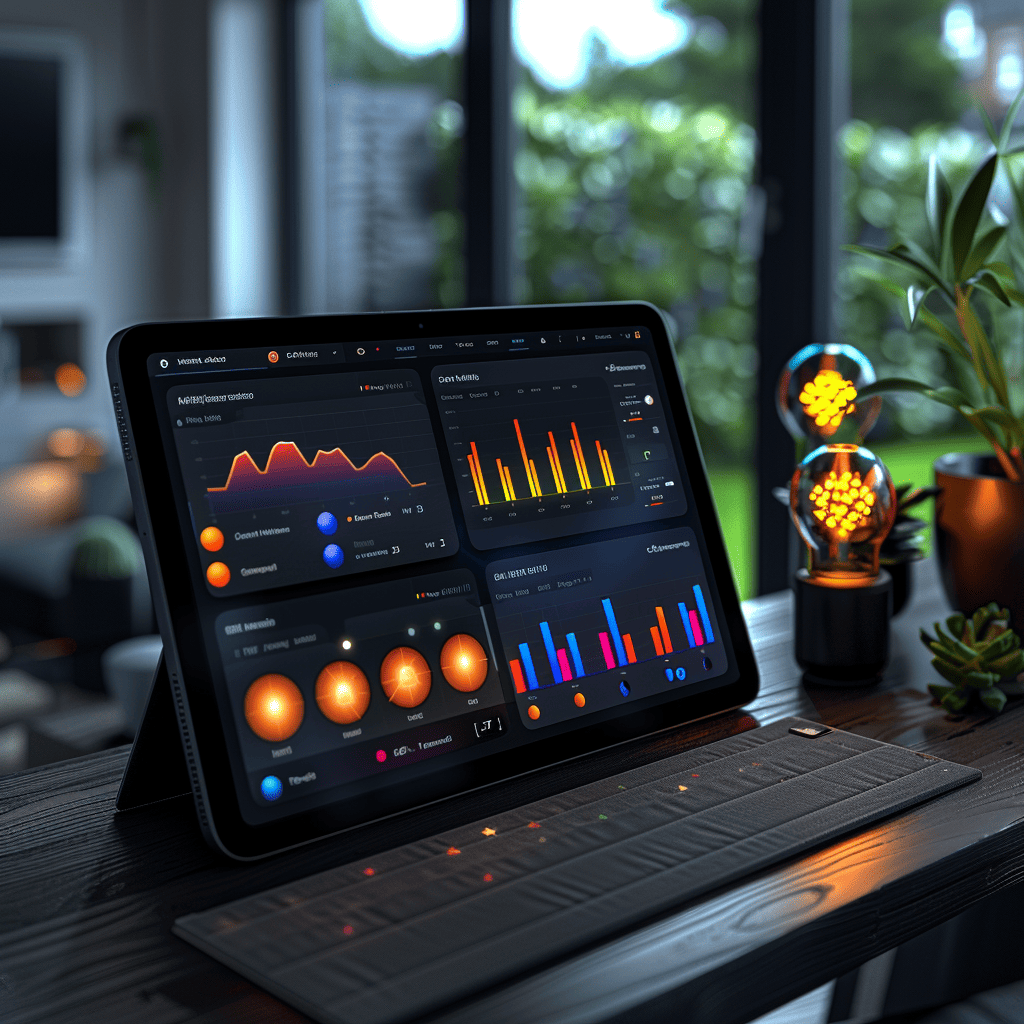
Integrating WLED with HomeAssistant: A Comprehensive Guide
If you’re looking to add some color and excitement to your smart home, LED lights are a great option. And if you’re using HomeAssistant as your home automation platform, you can easily integrate WLED-controlled LED strips or matrices for added functionality and convenience.
What is HomeAssistant?
HomeAssistant is an open-source home automation platform that provides a centralized control system for all your smart home devices. With HomeAssistant, you can automate various tasks, such as turning off lights when you leave home or adjusting the temperature based on your schedule. It supports a wide range of devices, including WLED, and offers an intuitive web interface for managing your smart home.
Setting up HomeAssistant
Before you can integrate WLED with HomeAssistant, you need to set up HomeAssistant on a compatible device, such as a Raspberry Pi or a virtual machine. Follow the HomeAssistant documentation to install and configure the software. Once you have set up HomeAssistant, you can add WLED as a new integration.
Adding WLED Integration to HomeAssistant
To add WLED integration to HomeAssistant, go to the Configuration page and click on the Integrations tab. From there, click on the “+” button to add a new integration and select WLED from the list of available integrations. Enter the IP address of the ESP32 board running WLED and click on the Submit button. HomeAssistant will connect to WLED and automatically discover your LED strips or matrices.
Configuring WLED in HomeAssistant
Once you have added the WLED integration to HomeAssistant, you can configure your LED strips or matrices to appear in the HomeAssistant dashboard. You can rename the devices, assign them to rooms, and create automations to control them based on various triggers, such as time of day or motion detection. You can also customize the color and brightness of your LEDs and schedule them to turn on or off at specific times.
Using WLED with HomeAssistant
With WLED integrated into HomeAssistant, you can control your LED strips or matrices using voice commands, mobile apps, or the HomeAssistant web interface. You can also create advanced automations to synchronize your LED lights with other devices, such as music players or security cameras. Additionally, you can use HomeAssistant’s built-in MQTT broker to communicate with WLED, eliminating the need for an external MQTT broker.
Benefits of Integrating WLED with HomeAssistant
Integrating WLED with HomeAssistant provides several benefits:
* Centralized control: With HomeAssistant, you can control all your smart home devices from a single interface, making it easier to manage your smart home.
* Automation: HomeAssistant provides advanced automation capabilities, allowing you to automate various tasks and create custom workflows.
* Voice control: HomeAssistant supports voice assistants such as Amazon Alexa and Google Assistant, allowing you to control your LED lights using voice commands.
* Advanced features: HomeAssistant provides advanced features such as scene creation, motion detection, and temperature control, allowing you to create a truly smart home.
Getting Started with WLED and HomeAssistant
To get started with WLED and HomeAssistant, you will need an ESP32 board, LED strips or matrices, and a compatible device for running HomeAssistant. Follow the WLED documentation to install and configure the software on your ESP32 board. Once you have set up WLED, follow the steps above to integrate it with HomeAssistant and start automating your smart home.
Note: While HomeAssistant provides a powerful automation platform for WLED, it is not necessary to use HomeAssistant to control WLED. WLED can operate independently and be controlled using its web interface or MQTT.
Troubleshooting Tips
If you encounter any issues while integrating WLED with HomeAssistant, here are some troubleshooting tips:
* Check your network connection: Ensure that your ESP32 board and HomeAssistant device are connected to the same network.
* Verify IP address: Make sure you have entered the correct IP address for your ESP32 board in the WLED integration settings.
* Check logs: Check the HomeAssistant logs for any error messages related to WLED integration.
* Restart devices: Try restarting your ESP32 board and HomeAssistant device to see if it resolves any issues.
Integrating WLED with HomeAssistant provides a powerful automation platform for controlling your LED lights and other smart home devices. With HomeAssistant’s intuitive web interface, advanced automation capabilities, and voice control, you can create a truly smart home that adapts to your needs. By following the steps above, you can easily integrate WLED with HomeAssistant and start automating your smart home today.
FAQs
Q: Do I need to use HomeAssistant to control WLED?
A: No, WLED can operate independently and be controlled using its web interface or MQTT.
Q: Can I use other voice assistants besides Amazon Alexa and Google Assistant with HomeAssistant?
A: Yes, HomeAssistant supports a wide range of voice assistants, including Apple Siri and Microsoft Cortana.
Q: Can I use other LED controllers besides WLED with HomeAssistant?
A: Yes, HomeAssistant supports a wide range of LED controllers, including Philips Hue, LIFX, and TP-Link Kasa.
Q: Can I use HomeAssistant to control devices other than LED lights?
A: Yes, HomeAssistant supports a wide range of smart home devices, including thermostats, locks, sensors, and cameras.
Q: Can I use HomeAssistant on my smartphone or tablet?
A: Yes, HomeAssistant has a companion app for iOS and Android devices that allows you to control your smart home from anywhere.


Tips and Tricks for Using WLED and ESP32
WLED and ESP32 are powerful tools for creating custom LED lighting displays. Whether you’re looking to add some ambiance to your home or create an eye-catching installation for a public space, WLED and ESP32 offer a wide range of features and capabilities.
Choosing the Right Power Supply
One of the most important considerations when using WLED and ESP32 is choosing the right power supply. LED strips and matrices can consume a significant amount of power, and it is essential to choose a power supply that can provide enough current to drive them without overheating. When selecting a power supply, make sure to check the power requirements of your LED strip or matrix and choose a power supply that can provide at least 20% more power than the maximum required. This will ensure that your LEDs are getting the power they need and help prolong the lifespan of your power supply.
Voltage
In addition to power, voltage is another critical factor to consider when choosing a power supply for WLED and ESP32. Make sure that the voltage of your power supply matches the voltage of your LED strip or matrix. If the voltage is too low, your LEDs may not light up correctly, and if it’s too high, you risk damaging your LEDs or power supply. Most LED strips and matrices operate at 12V or 5V, so choose a power supply with a compatible voltage rating.
Using Effects and Animations
WLED provides a wide range of effects and animations that you can use to create stunning visual displays. You can access these effects from the WLED web interface or by using MQTT commands. Some popular effects include rainbow, chase, and fire. You can also create custom effects using the WLED Effects Editor.
Audio Reactive
One of the most impressive features of WLED is its ability to create audio-reactive displays. By connecting a microphone to your ESP32, you can create a visualization that responds to music or sound. This is a great way to add an extra level of interactivity and engagement to your LED display. To enable audio reactivity, you’ll need to install the WLED Audio Reactive plugin and configure the settings to your liking.
Overclocking the ESP32
Overclocking the ESP32 can improve the performance of WLED and allow you to run more complex animations. However, it is important to note that overclocking can also increase the risk of overheating and reduce the lifespan of the ESP32. If you choose to overclock, make sure to monitor the temperature of the ESP32 and use a heat sink or fan to dissipate heat.
Clock Speed
When overclocking the ESP32, it’s important to understand how clock speed affects performance. The clock speed determines how many instructions the ESP32 can process per second. By increasing the clock speed, you can improve the performance of WLED, but this also increases the power consumption and heat generation of the ESP32. The ESP32 can be overclocked up to 240MHz, but this is not recommended for prolonged use or for applications that require stability and reliability.
Using Remote Access
WLED provides a remote access feature that allows you to control your LED strips or matrices from anywhere in the world. To use remote access, you will need to configure port forwarding on your router and use a dynamic DNS service to assign a domain name to your home network. Once you have set up remote access, you can control WLED using the web interface or MQTT commands from any device with an internet connection.
Security
When using remote access, it’s important to take steps to secure your WLED installation. Make sure to use a strong password for your WLED web interface and enable SSL encryption if possible. You should also be cautious when sharing your WLED installation with others, as this can increase the risk of unauthorized access or tampering. To further secure your installation, you can limit access to specific IP addresses or use a VPN.
Troubleshooting Common Issues
Like any other technology, WLED and ESP32 can sometimes encounter issues that can be frustrating to troubleshoot. Some common issues include LEDs not lighting up, flickering, or incorrect colors. In most cases, these issues can be resolved by checking the wiring and power supply, updating the firmware, or resetting the device. For more complex issues, you can consult the WLED documentation or seek help from the WLED community forums.
Debugging Tools
When troubleshooting issues with WLED and ESP32, debugging tools can be invaluable. The ESP32 has built-in debugging capabilities that allow you to view error messages and debug output. WLED also provides a logging feature that can help you diagnose issues with your LED display. By using these tools, you can quickly identify and resolve issues with your WLED installation.
Adding Sensors to Your WLED Installation
One way to take your WLED installation to the next level is by adding sensors to it. For example, you can use a temperature sensor to change the color of your LEDs based on the temperature in the room. You can also use a motion sensor to turn your LEDs on and off when someone enters or leaves the room. By adding sensors to your WLED installation, you can create a more interactive and responsive lighting display.
Integrating WLED with Home Assistant
If you’re using Home Assistant to manage your smart home, you can integrate WLED with it to create a more seamless lighting experience. By integrating WLED with Home Assistant, you can control your LEDs using voice commands, automate lighting scenes, and monitor the status of your LEDs from the Home Assistant dashboard. To integrate WLED with Home Assistant, you’ll need to install the WLED integration and configure it to connect to your WLED installation.
Expanding Your WLED Installation
As you become more comfortable with using WLED and ESP32, you may want to expand your LED installation to include more LED strips or matrices. When expanding your installation, it’s important to consider the power requirements of your LEDs and choose a power supply that can provide enough current to drive them all. You may also need to use additional hardware, such as multiplexers or level shifters, to connect multiple LED strips or matrices to your ESP32.
Multiplexing
Multiplexing is a technique that allows you to control multiple LED strips or matrices using a single ESP32. By using a multiplexer, you can reduce the number of data lines required to control your LEDs and simplify your wiring. There are several types of multiplexers available, including shift registers, Charlieplexing, and Matrix LED drivers. When choosing a multiplexer, make sure to consider the number of LEDs you need to control, the maximum current rating, and the compatibility with your ESP32 and LED strip or matrix.
Advanced Automation with WLED, ESP32, and HomeAssistant: Enhancing Your Smart Lighting Experience
Smart lighting is one of the most popular features of home automation, and with good reason. Not only can it create a more comfortable and aesthetically pleasing environment, but it can also save energy and provide useful information. In this article, we’ll explore how to take your smart lighting system to the next level with WLED, ESP32, and HomeAssistant.
Creating Scenes and Groups for Customized Lighting
One of the most powerful features of smart lighting is the ability to create custom scenes and groups. Scenes allow you to save specific colors and effects for your LED strips or matrices, while groups enable you to control multiple devices simultaneously. With WLED and HomeAssistant, you can easily create and manage scenes and groups using either the WLED web interface or the HomeAssistant UI.
To create a scene, simply select the devices you want to include, choose the desired color and brightness, and save the scene. You can then trigger the scene using voice commands, mobile apps, or automations. For example, you could create a scene called “Movie Night” that dims the lights and changes the color to a warm, ambient glow.
Groups allow you to control multiple devices at once, making it easy to turn on or off all the lights in a room or adjust their brightness simultaneously. You can create groups in the WLED web interface or using the HomeAssistant UI, and then control them using voice commands, mobile apps, or automations.
Automating with Sensors for a Smart Home Ecosystem
Sensors are a powerful tool for automating your smart lighting system. With HomeAssistant, you can use a wide range of sensors, including motion sensors, temperature sensors, and light sensors, to trigger automations. For example, you could use a motion sensor to turn on your LED lights when someone enters a room, or use a temperature sensor to change the color of your LEDs based on the temperature.
You can also use sensors to create more complex automations. For example, you could use a light sensor to turn off your LED lights when it’s bright outside, or use a motion sensor to turn off your lights after a certain period of inactivity. By combining sensors with automations, you can create a truly intelligent and responsive smart home ecosystem.
Integrating WLED with Other Smart Home Devices for Seamless Connectivity
One of the great things about WLED and ESP32 is their compatibility with a wide range of other smart home devices. With HomeAssistant, you can easily integrate your LED lights with voice assistants like Amazon Alexa and Google Assistant, allowing you to control your lights using voice commands. You can also use your LED lights to indicate when someone is at the door, or to provide visual feedback for other devices, such as changing color based on the weather forecast or displaying the status of your smart thermostat.
Leveraging Custom Scripts and Webhooks for Advanced Automations
While HomeAssistant’s built-in automation tools are powerful, custom scripts and webhooks allow you to create even more advanced automations. For example, you could use a custom script to trigger an animation when a specific event occurs, such as a new email or a stock price change. You could also use webhooks to integrate WLED with other services, such as IFTTT or Zapier, allowing you to create complex workflows that span multiple devices and platforms.
Optimizing Performance and Reducing Power Consumption for Energy Efficiency
While WLED and ESP32 are designed to be energy-efficient, there are still steps you can take to optimize performance and reduce power consumption. For example, you can use PWM dimming to reduce the power consumption of your LED strips or matrices, or use the power management features of the ESP32 to put the device into sleep mode when it’s not in use. You can also use automations to turn off your LED lights when they’re not needed, such as during the day or when no one is home. By taking these steps, you can save energy and prolong the life of your LED lights.
Enhancing Your Smart Lighting System with Third-Party Libraries
To further enhance your WLED and ESP32 setup, consider incorporating third-party libraries. These libraries allow you to add new features and capabilities to your smart lighting system, such as advanced color control, animation effects, and integration with other smart home devices. Some popular third-party libraries for WLED and ESP32 include FastLED, NeoPixelBus, and Adafruit\_NeoPixel.
Exploring the WLED Community for Inspiration and Support
The WLED community is a valuable resource for anyone looking to get the most out of their WLED and ESP32 setup. By joining online forums, following WLED blogs, and participating in community events, you can connect with other enthusiasts, learn about new developments, and get inspired by creative projects. With the support of the WLED community, you can take your smart lighting system to new heights.
Securing Your WLED and ESP32 Setup for Peace of Mind
As with any connected device, it’s important to take steps to secure your WLED and ESP32 setup. This includes changing the default password, enabling encryption, and keeping your firmware and software up to date. By taking these precautions, you can protect your smart lighting system from potential security threats and enjoy peace of mind.
Expanding Your Smart Home Ecosystem with WLED and ESP32
With its versatility and compatibility with a wide range of devices, WLED and ESP32 are the perfect foundation for a smart home ecosystem. By exploring the possibilities of home automation and expanding your system to include other devices, such as smart speakers, smart plugs, and smart locks, you can create a truly connected and intelligent home. With WLED and ESP32 at the core, the possibilities are endless.
Troubleshooting Your WLED and ESP32 Setup for Optimal Performance
Like any technology, WLED and ESP32 may sometimes experience issues that can affect performance. To keep your smart lighting system running smoothly, it’s important to troubleshoot any problems that arise. Common issues include connectivity problems, power supply issues, and firmware updates. By following best practices and seeking help from the WLED community, you can quickly resolve any issues and get your smart lighting system back to optimal performance.
Upgrading Your WLED and ESP32 Setup for Enhanced Features and Capabilities
As technology continues to evolve, new features and capabilities are constantly being added to WLED and ESP32. To take advantage of these advancements, consider upgrading your setup with the latest hardware and software. Upgrading can provide improved performance, new features, and enhanced compatibility with other devices, allowing you to get the most out of your smart lighting system.
WLED and ESP32 offer a powerful and versatile platform for advanced automation and home integration. By following the tips and best practices outlined in this guide, you can create custom scenes and groups, automate with sensors, integrate with other smart home devices, and optimize performance and power consumption. With the support of the WLED community and the ability to expand your smart home ecosystem, the possibilities are endless. So why wait? Start exploring the world of WLED and ESP32 today!


